
How to Fix Battle.net Not Working with a VPN


 5 min. read
  Published on
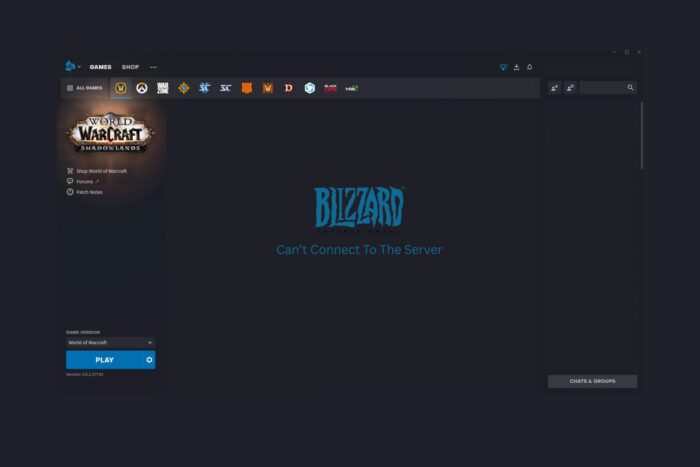
Does your Battle.net launcher refuse to connect when your VPN is on? The app may hang on “Connecting,” games won’t launch, or downloads stall.
You don’t have to give up your VPN, follow these quick fixes to get Battle.net working with a VPN again.

Access content across the globe at the highest speed rate.
🔥 Save 81% + 2 bonus months! 🔥
70% of our readers choose Private Internet Access
70% of our readers choose Private Internet Access
2
Browse the web from multiple devices with industry-standard security protocols.
🔥 Save 73%! 🔥

Faster dedicated servers for specific actions (currently discounted)
🔥 Save 69%! 🔥
How to Fix Battle.net Not Working with a VPN (Step-by-Step Guide)
Table of contents
- How to Fix Battle.net Not Working with a VPN (Step-by-Step Guide)
- Quick Answer (more details & steps below)
- Why Battle.net Can Fail Over a VPN
- 1. Switch to a Closer VPN Server
- 2. Enable Split Tunneling for Battle.net
- 3. Change VPN Protocol or Provider
- 4. Allow Battle.net in Firewall or Antivirus
- 5. Flush DNS and Refresh the Network
- 6. Reinstall or Update the Battle.net App
- FAQ: VPNs, Bans, and Downloads
- Conclusion
Quick Answer (more details & steps below)
Switch to a nearby VPN server, then enable split tunneling to exclude Battle.net from the VPN. If it still won’t connect, change protocol (WireGuard or OpenVPN), allow the launcher in your firewall or antivirus, and flush DNS. As a last step, reinstall or update the Battle.net app and test again.
Why Battle.net Can Fail Over a VPN
- Blocked IP ranges or routing issues: Some VPN exits are flagged or routed poorly to Blizzard’s network.
- Latency from distant servers: Far-away locations can cause timeouts or stalled downloads.
- Security checks: Sudden logins from new regions may trigger extra verification.
These aren’t ban-worthy by themselves; VPNs aren’t forbidden, they’re just not officially supported. See the FAQ below for details on Blizzard’s VPN policy.
1. Switch to a Closer VPN Server
- Open your VPN app and go to the server list.
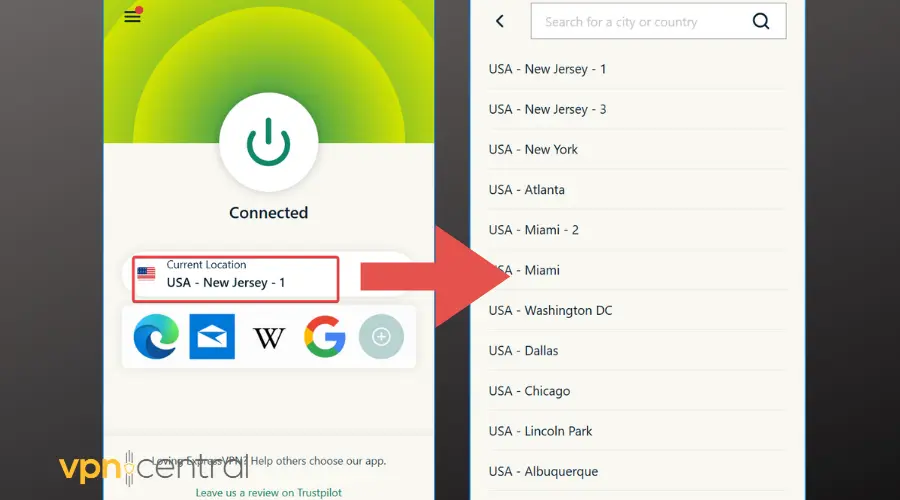
- Connect to a server in your country or near your game region.
- This reduces latency and avoids problematic IP ranges that can block logins or throttle updates. Reopen Battle.net and test.
2. Enable Split Tunneling for Battle.net
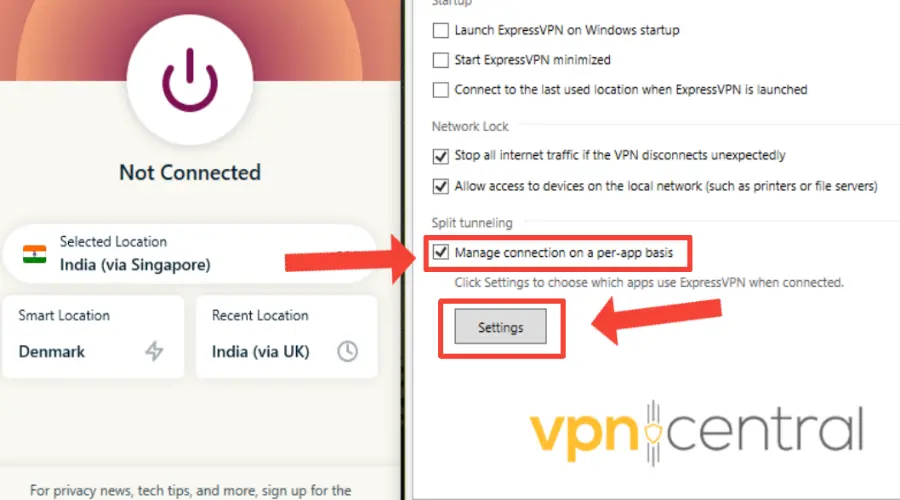
Keep your VPN active for everything else while letting Battle.net connect directly through your ISP.
- Open your VPN app and find Split Tunneling or “Allowed apps.”
- Exclude the Battle.net launcher (and game executables if needed).
- Save, reconnect the VPN, and test Battle.net.
If your provider supports app-level rules for specific games, you can model it on our Heroes of the Storm VPN guidance, which explains app-specific VPN behavior.
3. Change VPN Protocol or Provider
If exclusion isn’t possible—or doesn’t work—switch protocols: WireGuard → OpenVPN UDP → OpenVPN TCP. Protocols handle networks differently and can bypass bad routes.
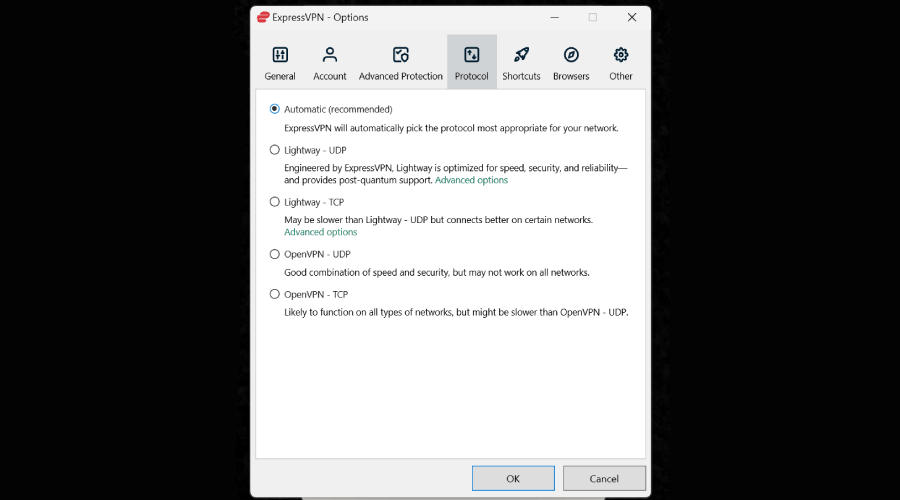
Still stuck? Try a gaming-friendly VPN known to work well with Blizzard traffic. Our top choice in this category is ExpressVPN.
The tool is gaming-optimized to provide low-latency connections, reduce packet loss, and automatically select the fastest server for your region. It also offers split tunneling and multiple protocols like Lightway and OpenVPN, so you can maintain smooth Battle.net performance without sacrificing privacy.

ExpressVPN
Try this gaming-optimized VPN for uninterrupted Battle.net gaming!4. Allow Battle.net in Firewall or Antivirus
Your security suite may treat the VPN adapter as a new network and block the launcher.
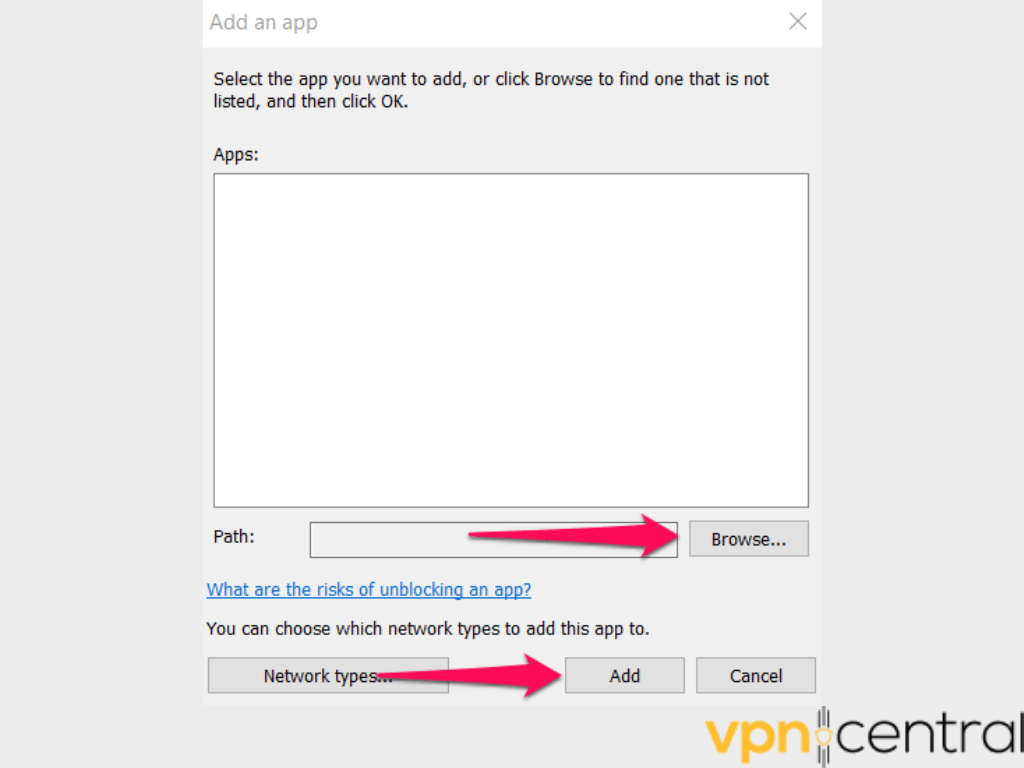
- Add Battle.net Launcher and Blizzard games to your firewall or AV exceptions.
- Restart the launcher and test again with the VPN on.
If you’re optimizing for latency, see our WoW server lag guide for complementary tweaks that improve performance alongside your VPN.
5. Flush DNS and Refresh the Network
Switching between VPN and non-VPN networks can leave stale DNS entries. On Windows:
- Press Win + R, type
cmd, and hit Enter. - Run these commands one by one:
ipconfig /flushdnsipconfig /releaseipconfig /renew
Reboot the PC and router, reconnect your VPN, and test again.
For tips that keep your card matches stable, check our VPN for Hearthstone article.
6. Reinstall or Update the Battle.net App
If none of the above helps, reinstall the Battle.net app to clear cached network settings that might conflict with your VPN. Update it afterward and test again.
FAQ: VPNs, Bans, and Downloads
No. VPN use isn’t forbidden, it’s simply not supported. Avoid constant region hopping and don’t use a VPN to break rules or sanctions.
A distant or congested VPN server can throttle speeds or break routes to Blizzard’s CDN. Use a closer server or switch protocol; split tunneling lets downloads run directly over your ISP.
Start with WireGuard or OpenVPN UDP for speed. If that fails, use OpenVPN TCP for stability.
If Battle.net works on mobile data or with a VPN but not on home Wi-Fi, it points to ISP or router path issues. Power-cycle your modem/router and try again.
Conclusion
Having Battle.net not working because of a VPN is annoying but fixable. Change VPN servers, enable split tunneling, switch protocols, whitelist the app, flush DNS, or reinstall the launcher if needed. VPNs aren’t forbidden, configure them correctly and you can game safely without connection hiccups.
Many players even use VPNs to reduce lag or improve routing. With these fixes, you can raid, battle, and queue securely without Battle.net issues.


Read our disclosure page to find out how can you help VPNCentral sustain the editorial team Read more


Improve this guide




User forum
0 messages