
How to Fix Google Maps Not Working With VPN (2026 Guide)


 4 min. read
  Published on
Key notes
✅ Quick Summary
-
- Use a VPN server near you
-
- Clear cache and cookies
-
- Disable GPS temporarily
-
- Use Split Tunneling for Maps
-
- Change DNS to 8.8.8.8
-
- Disable WebRTC leaks
-
- Turn off IPv6
-
- Update your VPN app
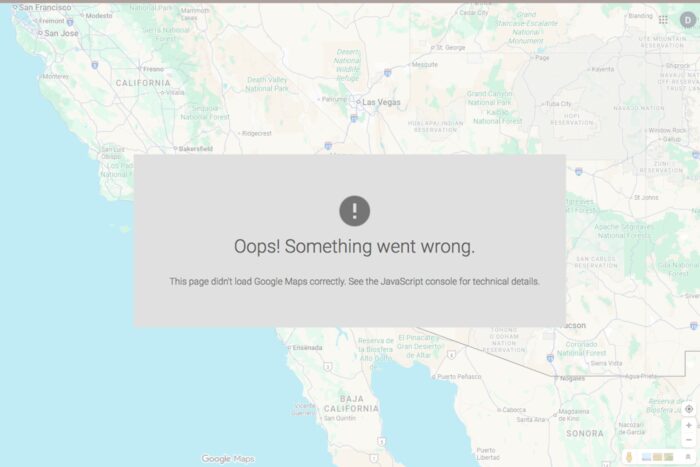
If Google Maps won’t load or shows the wrong location while your VPN is on, it’s usually a location conflict.
Here’s how to quickly fix Google Maps not working with a VPN and get it running normally again.

Access content across the globe at the highest speed rate.
🔥 Save 81% + 2 bonus months! 🔥
70% of our readers choose Private Internet Access
70% of our readers choose Private Internet Access
2
Browse the web from multiple devices with industry-standard security protocols.
🔥 Save 73%! 🔥

Faster dedicated servers for specific actions (currently discounted)
🔥 Save 69%! 🔥
Table of contents
Why Google Maps Stops Working With a VPN
When Google Maps fails to load or shows the wrong location while your VPN is on, it’s often because Google can’t verify your real position. A VPN hides your IP, so Maps might think you’re in another country or detect “suspicious” network traffic.
Common Error Messages
- “Google Maps can’t find your location.”
- “This page can’t load Google Maps correctly.”
- “Location unavailable. Try turning on Wi-Fi or GPS.”
- Blank or gray map area with a spinning loading circle.
How to Fix Google Maps Not Working With VPN
1. Switch to a Nearby VPN Server
Choosing a server too far from your real region confuses Google’s geolocation system.
- Open your VPN app.
- Disconnect and pick a server in your current country or city.
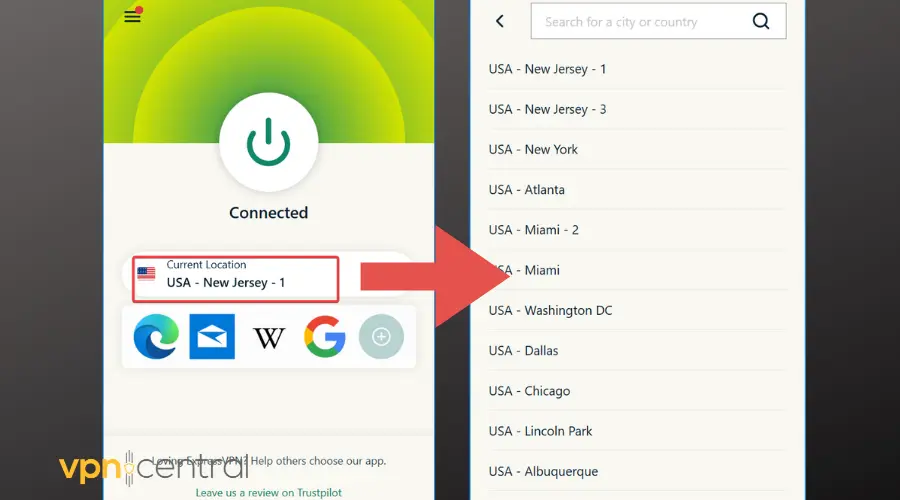
- Reconnect and refresh Google Maps.
This helps Maps deliver accurate local results and faster routes.
2. Clear Google Maps and Browser Cache
Outdated or conflicting cache files can stop Maps from updating properly. This issue can appear in browsers, too. If you notice Chrome misbehaving with your VPN, check our full guide on how to fix Google Chrome not working with VPN.
- Press Ctrl + Shift + Delete in Chrome.
- Select All time, check Cookies and Cached images/files, then click Clear data.
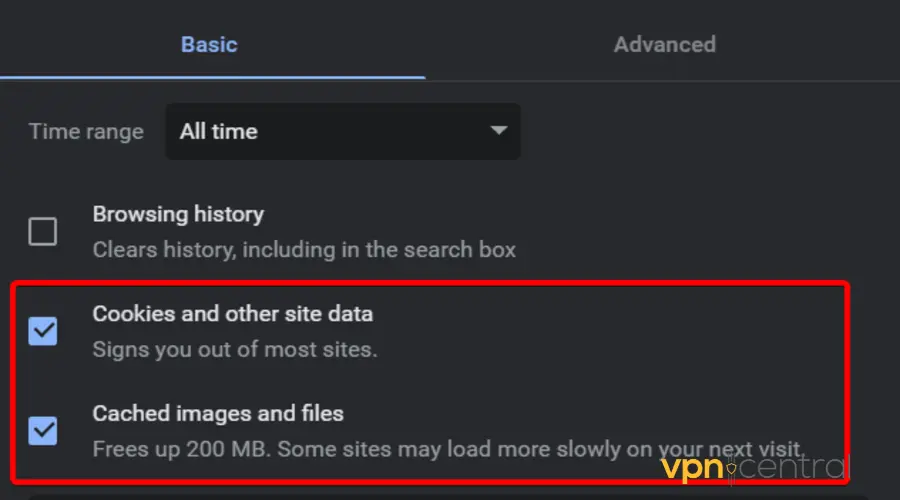
- Restart your browser and reload Maps.
For the mobile app:
Go to Settings > Apps > Maps > Storage > Clear cache.
3. Disable GPS or Precise Location Temporarily
When both GPS and VPN try to determine your location, Maps receives mixed data.
- Go to Settings > Location on your phone.
- Turn off Use precise location or GPS.
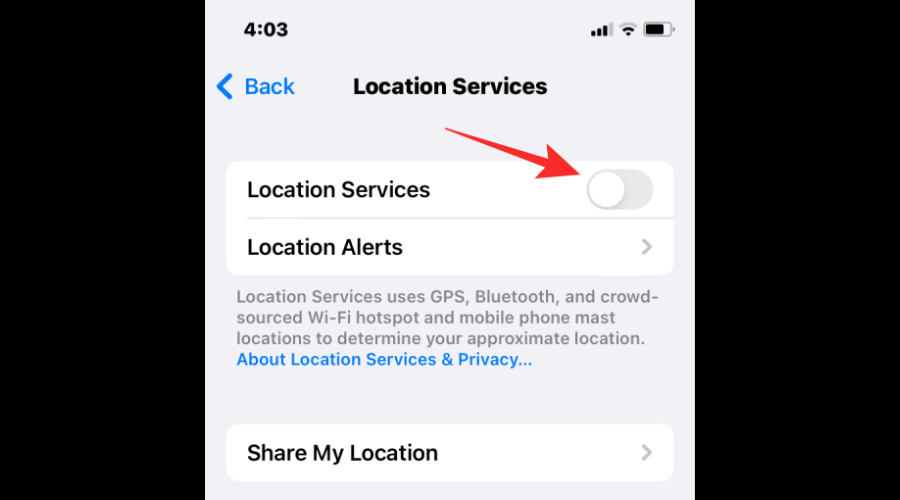
- Reopen Google Maps.
- Once it loads, re-enable GPS if needed.
4. Allow Google Maps Through VPN Split Tunneling
Split tunneling lets certain apps skip the VPN connection. If you use VPN extensions in browsers, make sure they work correctly; check this helpful resource on how to fix NordVPN extension not working for browser-based VPN issues.
- Open your VPN settings.
- Find Split Tunneling / App Exceptions.
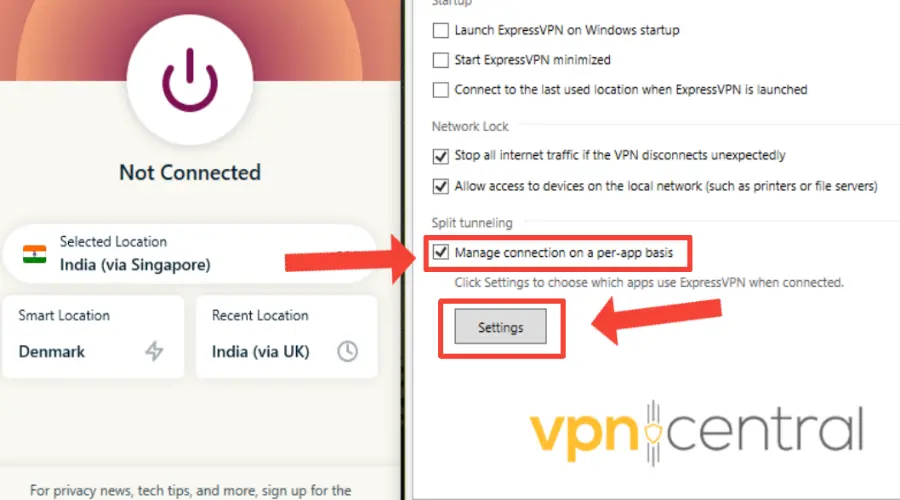
- Add Google Maps or your browser to the exclusion list.
- Reconnect to your VPN.
This keeps your privacy for other apps while Maps uses your direct connection.
5. Change DNS to Google’s Public DNS
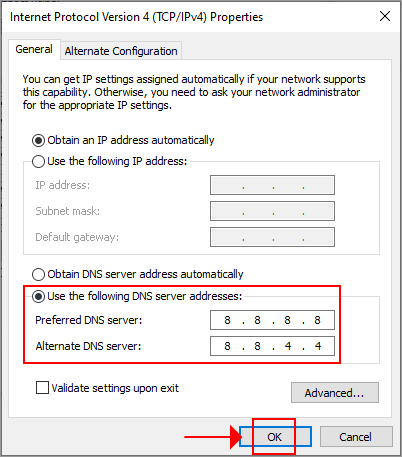
Some VPN DNS servers can block or misroute location lookups.
- Open Control Panel → Network and Internet → Network Connections.
- Right-click your active network > Properties.
- Select Internet Protocol Version 4 (TCP/IPv4) > Properties.
- Choose Use the following DNS servers and enter:
Preferred:8.8.8.8
Alternate:8.8.4.4 - Click OK, then reconnect your VPN.
6. Turn Off WebRTC in Your Browser
WebRTC can reveal your real IP even when a VPN is active, confusing Google’s location data. This is especially useful if you often use Incognito windows — learn more about whether VPN extensions work on Incognito mode and how to protect your identity while browsing.
- Install an extension like WebRTC Leak Prevent or uBlock Origin.
- Open extension settings and disable WebRTC.
- Restart the browser and open Google Maps again.
7. Disable IPv6 on Your Device
Google Maps may conflict with IPv6 connections if your VPN doesn’t support them.
- Press Windows + R, type
ncpa.cpl, and press Enter. - Right-click your active network > Properties.
- Uncheck Internet Protocol Version 6 (TCP/IPv6).
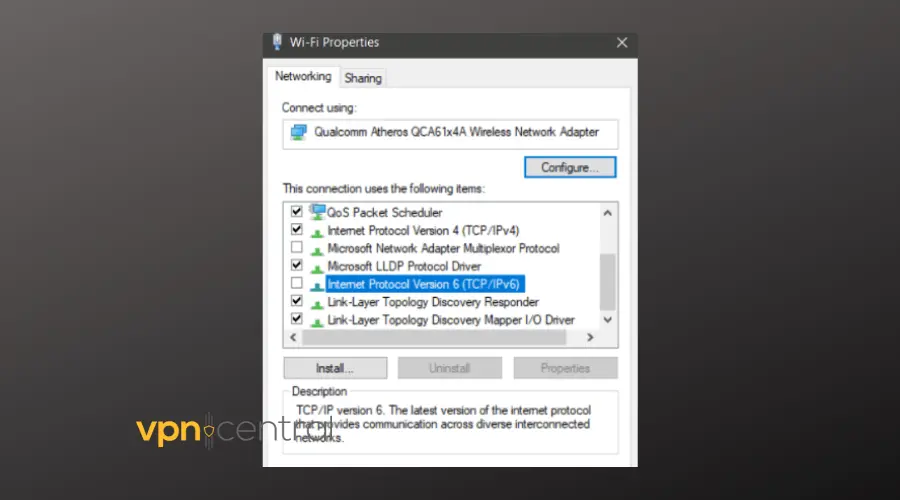
- Click OK and restart your computer.
8. Reinstall or Update Your VPN App
Outdated VPN clients can cause DNS leaks or connection bugs.
- Uninstall your current VPN.
- Download the latest version from the official website.
- Reinstall, log in, and test Maps again.
FAQs
Because the VPN masks your IP, confusing Google’s geolocation system. It may think you’re in another region or block the request.
Yes, as long as you use a stable VPN server and configure split tunneling or DNS properly.
Wrapping up
These eight proven fixes will help you get Google Maps running smoothly again, even with your VPN active.


Read our disclosure page to find out how can you help VPNCentral sustain the editorial team Read more


Improve this guide




User forum
0 messages