
How to Fix Google Search Not Working With VPN (2026 Steps)


 8 min. read
  Published on
Key notes
Quick Easy Steps (Try These First)
- Disconnect and reconnect your VPN.
- Refresh or reopen Google Search in a new tab.
- Complete the CAPTCHA if it appears, then wait a few seconds.
- Switch to a nearby VPN server.
- Restart your VPN app or browser.
More in depth troubleshooting below ⬇️
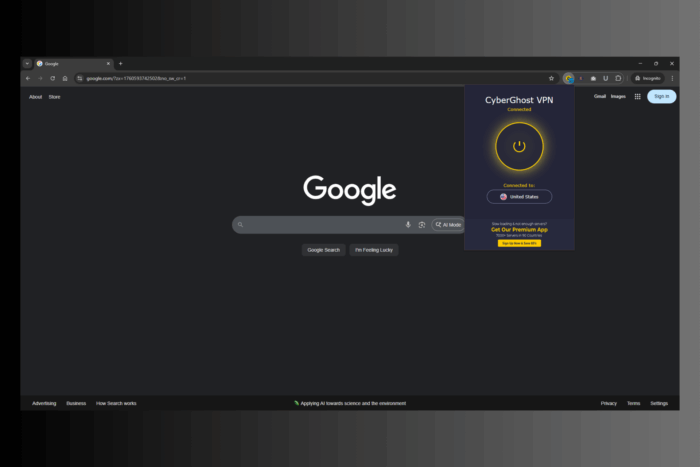
If Google Search isn’t working with VPN and instead displays errors, shows faulty locations, or generates endless captcha verifications, follow the steps below. The issue is often caused by blocked or blacklisted VPN IPs, DNS leaks or browser conflicts.
When you connect to a VPN, Google may detect multiple users sharing the same IP address and temporarily block or restrict access to its services. Find here step by step instructions for all known conflicts between Google Search and VPN

Access content across the globe at the highest speed rate.
🔥 Save 81% + 2 bonus months! 🔥
70% of our readers choose Private Internet Access
70% of our readers choose Private Internet Access
2
Browse the web from multiple devices with industry-standard security protocols.
🔥 Save 73%! 🔥

Faster dedicated servers for specific actions (currently discounted)
🔥 Save 69%! 🔥
Table of contents
- Why Google Search Is Not Working With VPN
- Step by Step Fixes to Make Google Search Work With VPN
- 1. Switch to Another VPN Server
- 2. Use Incognito or Private Mode
- 3. Clear Browser Cache and Cookies
- 4. Disable Browser Extensions Temporarily
- 5. Change VPN Protocol
- 6. Enable Stealth or Obfuscation Mode in VPN
- 7. Flush and Reset DNS Cache
- 8. Change Your DNS Provider
- 9. Turn Off IPv6
- 10. Reset Browser Settings to Default
- 11. Restart Router and Clear Network Cache
- 12. Check Firewall and Antivirus Settings
- 13. Try a Different Browser
- 14. Use Split Tunneling for Browser Only
- 15. Try a Reputable VPN With Clean IPs
- Does Using a VPN Change Google Availability?
- Is Google Search Available Worldwide?
- Google Features Affected by VPN or Proxy
- How to Choose the Best VPN for Google Services
- Conclusion: Fixing Google Search Not Working With VPN
- FAQ About Google Search and VPN
Why Google Search Is Not Working With VPN
Google blocks VPN IP addresses when they’re linked to automated or suspicious activity. Shared exit nodes often trigger CAPTCHAs or full blocks because too many people use the same IP. Sometimes, DNS leaks or mismatched routing between your VPN and ISP prevent Google domains from loading correctly. In rare cases, browser privacy extensions, anti-tracking tools, or firewalls interfere with the connection.
Common Symptoms and What They Mean
- Google Search page won’t load: DNS or routing issues caused by VPN or firewall.
- “Unusual traffic detected” message: The VPN IP was flagged for automated searches.
- CAPTCHA keeps reappearing: Shared IP or overused server.
- Redirected to another country’s Google domain: VPN location mismatch.
- Blank search results or error 403: IP blacklisted by Google’s filters.
Typical Google Error Messages When Google Search Clashes With VPN
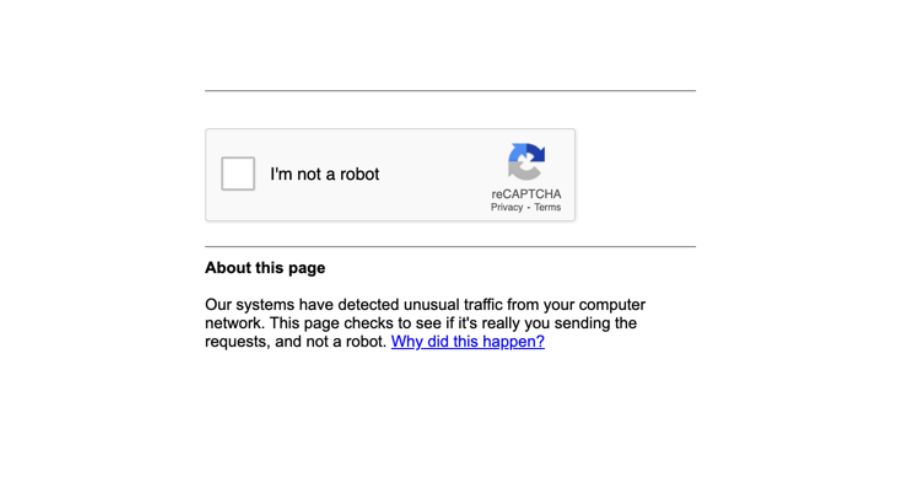
- “Our systems have detected unusual traffic from your computer network.”
- “Please verify you’re not a robot.”
- “This site can’t be reached – google.com took too long to respond.”
- “403 Forbidden.”
- “Your request looks similar to automated queries.”
Step by Step Fixes to Make Google Search Work With VPN
1. Switch to Another VPN Server
- Disconnect your VPN.
- Choose a new server in a nearby city or country.
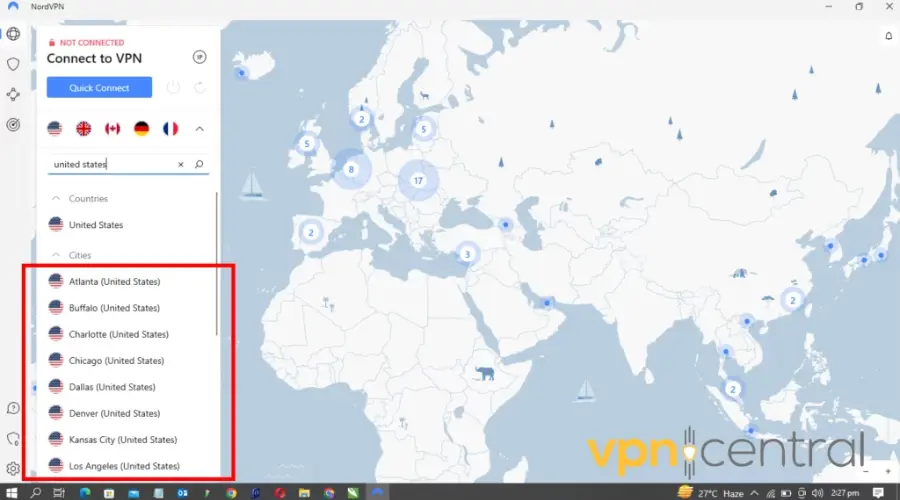
- Reconnect and reload Google Search.
Each VPN server has different IPs. Switching gives you a fresh IP that’s less likely to be blacklisted by Google.
2. Use Incognito or Private Mode
- Open your browser’s private window (Ctrl+Shift+N in Chrome).
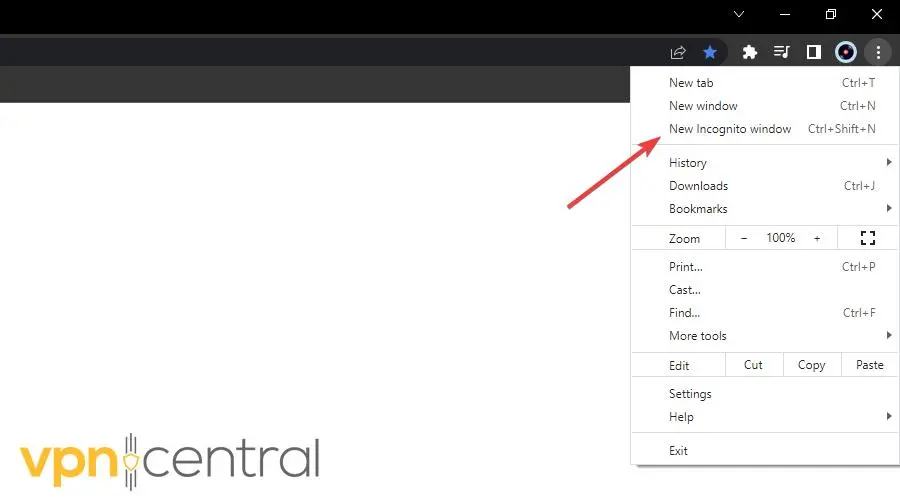
- Connect your VPN.
- Access Google Search.
Incognito mode ignores old cookies and cached region data that may confuse Google’s servers.
3. Clear Browser Cache and Cookies
Chrome or Edge:
- Type
chrome://settings/clearBrowserDataand press Enter. - Choose All time → clear cached images, files, and cookies.
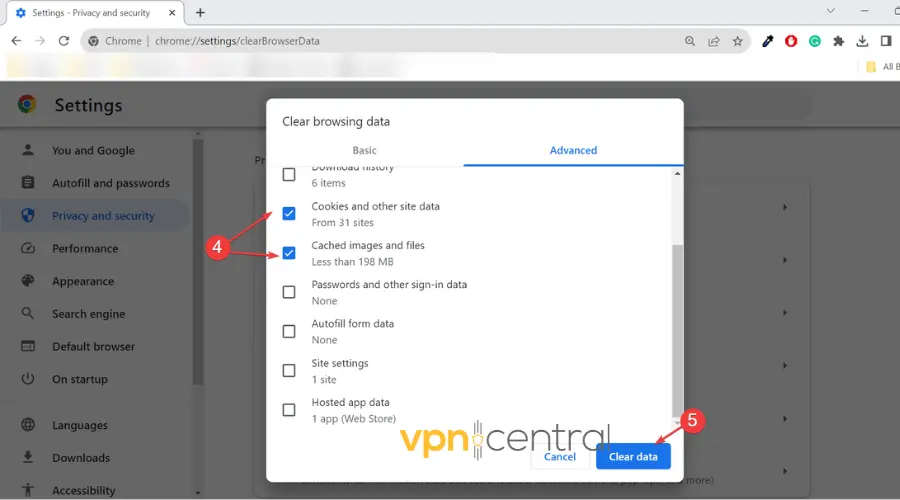
- Restart the browser and reconnect your VPN.
Old cookies tied to your real IP can interfere with VPN routing. Clearing them resets your Google session cleanly.
4. Disable Browser Extensions Temporarily
- Open your browser’s Extensions or Add-ons section.
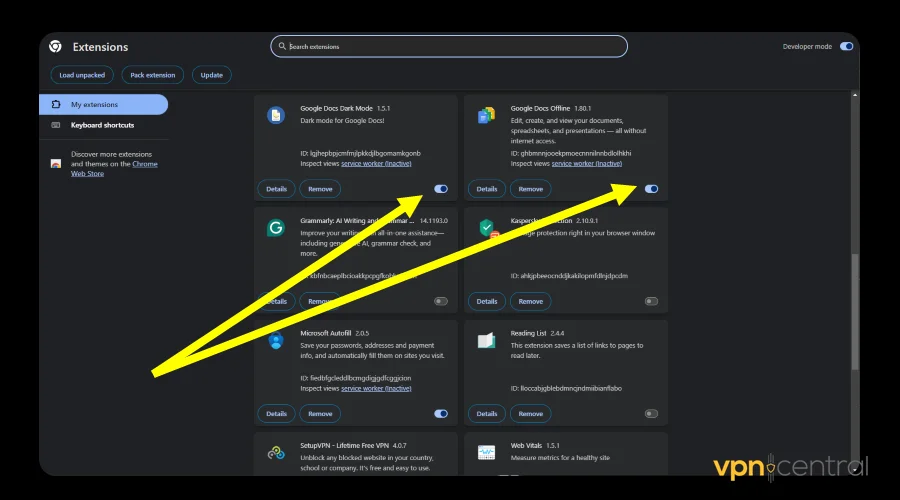 Turn off ad blockers, privacy tools, or DNS extensions.
- Refresh Google Search.
Extensions that block scripts or manage privacy can prevent Google from loading under VPN connections.
5. Change VPN Protocol
- Open your VPN app’s Settings or Connection tab.
- Switch between WireGuard, OpenVPN TCP, or IKEv2.
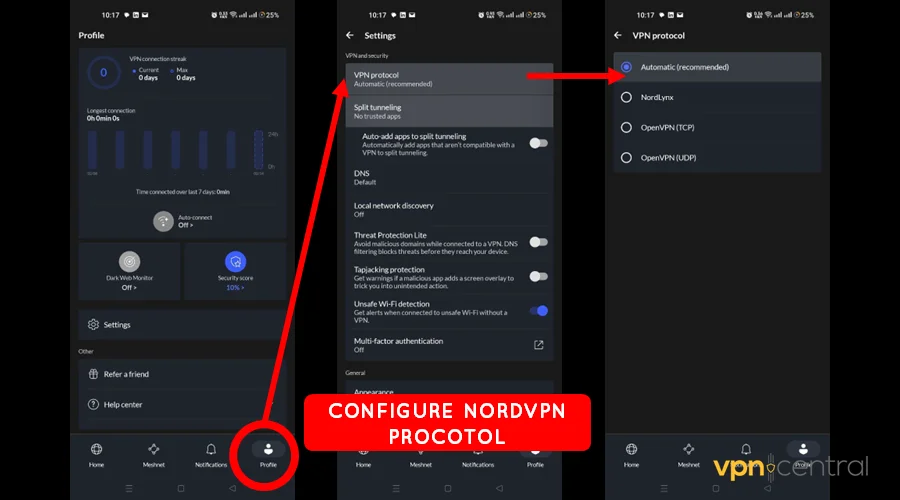
- Reconnect and test Google again.
Some networks throttle or block certain protocols. Trying another helps your connection bypass restrictions.
6. Enable Stealth or Obfuscation Mode in VPN
- Open your VPN app’s Settings.
- Enable “Obfuscation,” “Scramble,” or “Stealth Mode.”
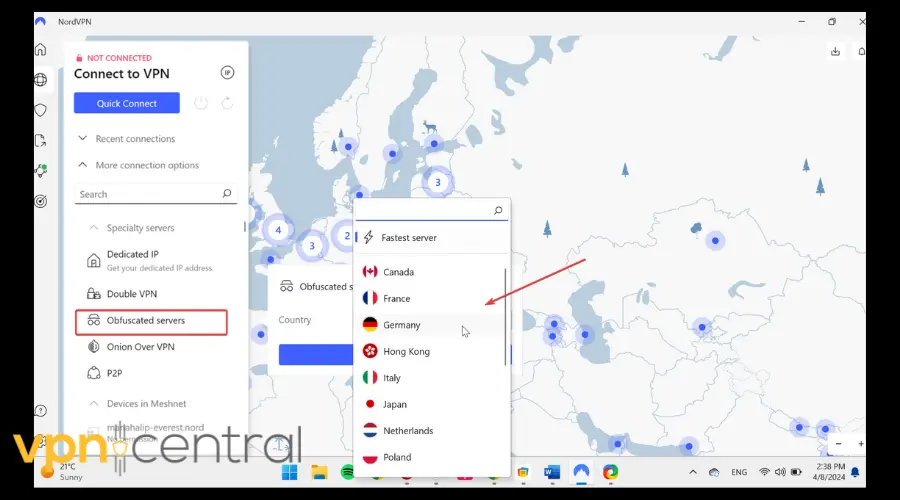
- Reconnect and reload Google.
This disguises VPN traffic as normal HTTPS activity, helping you avoid deep packet inspection filters that can block Google.
7. Flush and Reset DNS Cache
Windows:
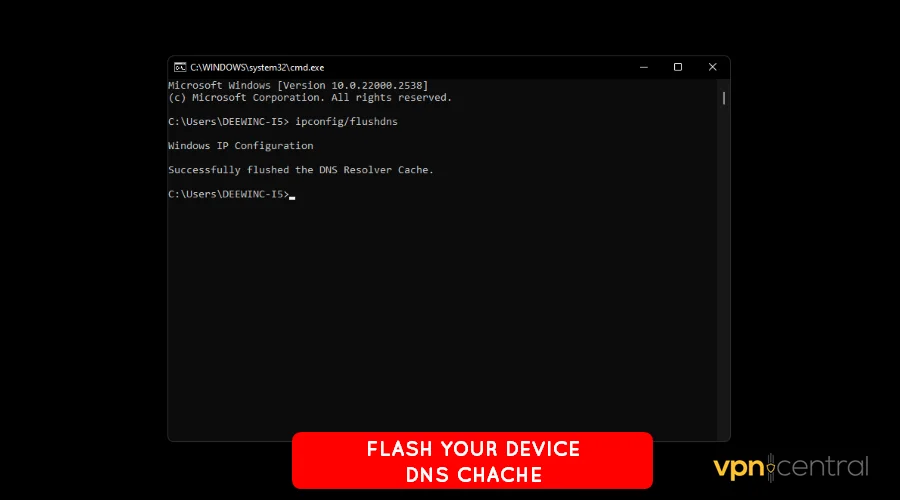
- Open Command Prompt as Administrator.
- Run:
ipconfig /flushdns netsh winsock reset netsh int ip reset - Restart your PC and reconnect the VPN.
macOS:
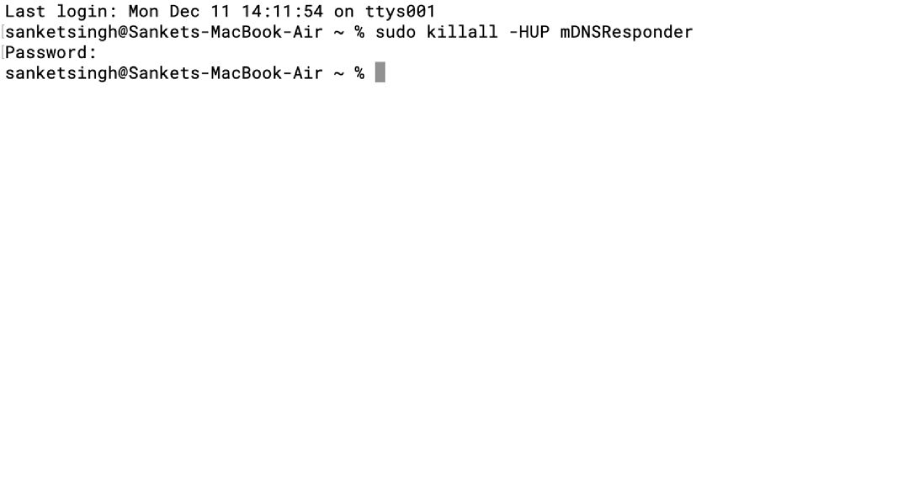
- Open Terminal.
- Run:
sudo dscacheutil -flushcache; sudo killall -HUP mDNSResponder - Reconnect VPN and try Google.
Clearing cached DNS ensures Google resolves through the VPN’s encrypted DNS, not your ISP’s.
8. Change Your DNS Provider
- Go to your network settings.
- Set manual DNS to 1.1.1.1 and 1.0.0.1 (Cloudflare) or 8.8.8.8 and 8.8.4.4 (Google).
- Save changes and reconnect your VPN.
Public DNS servers are faster and more reliable than ISP DNS, reducing lookup and timeout errors.
9. Turn Off IPv6
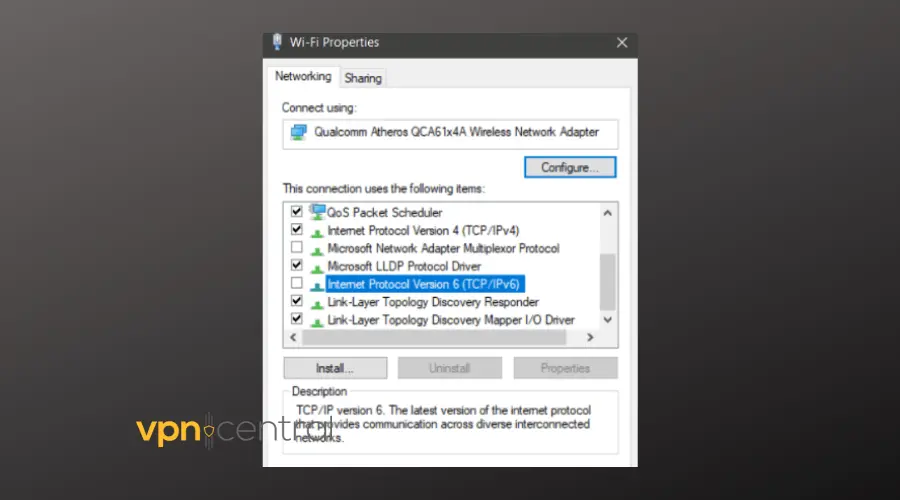
- Open your network adapter settings.
- Right-click your active connection → Properties.
- Uncheck Internet Protocol Version 6 (TCP/IPv6).
- Save and reconnect the VPN.
Some VPNs leak IPv6 traffic, revealing your real location and confusing Google’s region detection.
10. Reset Browser Settings to Default
- Open Chrome Settings → Reset settings → Restore settings to original defaults.
- Confirm and restart your browser.
- Test Google Search with your VPN.
A clean reset removes old flags, extensions, or proxy settings that may be interfering.
11. Restart Router and Clear Network Cache
- Unplug your router for 30 seconds.
- Plug it back in and reconnect.
- Reconnect your VPN and test Google.
Routers cache DNS and network routes. Restarting clears them, preventing old IPs from blocking requests.
12. Check Firewall and Antivirus Settings
- Temporarily disable antivirus and firewall.
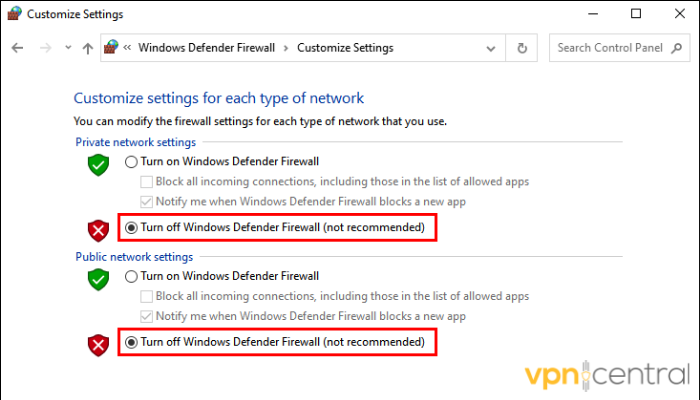
- Reconnect your VPN and test Google Search.
- If it works, whitelist your VPN app before re-enabling protection.
Firewalls often block VPN ports or encrypting behavior. Whitelisting ensures Google loads normally through your VPN.
13. Try a Different Browser
- Download another browser like Opera, Firefox, or Brave.
- Reconnect your VPN and open Google Search.
- Compare behavior between browsers.
If one browser works while another fails, the problem is local, cached data, extensions, or cookies.
14. Use Split Tunneling for Browser Only
- In your VPN app, enable Split Tunneling.
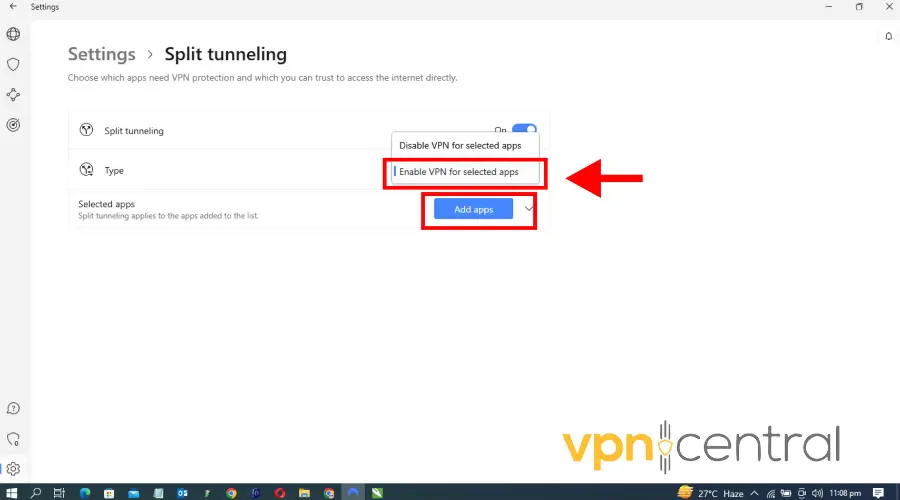
- Add your browser to use the VPN exclusively.
- Let other apps connect normally.
This isolates your VPN traffic to Google browsing, minimizing potential conflicts from other software.
15. Try a Reputable VPN With Clean IPs
Low-quality VPNs recycle the same servers, which often get flagged. Upgrading to a trusted VPN reduces the chances of Google blocking your searches.
Recommended options:
- NordVPN — Rotates clean IPs and supports obfuscation modes. Excellent for Google and Gmail.
- ExpressVPN — Reliable high-speed servers with few CAPTCHA loops.
- ProtonVPN — Open-source security with strong anti-blocking technology.
These providers maintain verified IP pools, use secure DNS, and provide stealth protocols that prevent detection.
Does Using a VPN Change Google Availability?
Yes. Google adjusts regional features and redirects your search domain based on your VPN’s IP. For instance, connecting through Germany routes you to google.de.
If your VPN interferes with Google Maps, check this guide on fixing Google Maps not working with VPN.
Is Google Search Available Worldwide?
Yes, but search features vary by region. Some countries limit results or censor content. If you connect through one of these areas, you might see filtered results. You can also check how to fix Google Chrome not working with VPN if you suspect browser conflicts.
Google Features Affected by VPN or Proxy
- Search suggestions: May stop working if your IP appears unreliable.
- Personalized results: Disabled for anonymous sessions.
- Google Chrome sync: Can pause due to mismatched region data.
- Google Drive or Gmail: Might log you out for security checks. Learn to fix Gmail not working with VPN or Google Drive not working with VPN.
- VPN by Google: Sometimes conflicts with another VPN. See how to fix VPN by Google not working.
How to Choose the Best VPN for Google Services
- Clean IPs: Rotating or dedicated IPs reduce blacklisting.
- Protocol support: Choose WireGuard or OpenVPN with stealth options.
- DNS protection: Prevents leaks to your ISP.
- Speed: Fast servers avoid timeouts or failed requests.
- Cross-platform support: Seamless use on Windows, macOS, Android, iOS.
- Support quality: Live chat helps diagnose region or CAPTCHA problems fast.
Conclusion: Fixing Google Search Not Working With VPN
If Google Search fails under a VPN, start simple: switch servers, clear cookies, and use Incognito. If that fails, fix DNS, disable IPv6, and reset browser settings.
Check your router, firewall, and try split tunneling. In most cases, a clean, reputable VPN solves the problem permanently, restoring full Google access while keeping your browsing private.
FAQ About Google Search and VPN
Because your VPN IP might be shared or flagged for automated traffic, triggering temporary access limits or CAPTCHAs.
The IP may be blacklisted, or DNS resolution may fail. Flushing DNS or switching servers usually fixes it.
Yes. Your region and language adapt to your VPN server’s location.
Google’s systems aren’t anti-VPN, but they block suspicious IPs often linked to abuse or scraping.
Yes. Use a reputable VPN, clear cookies often, and avoid switching servers mid-session


Read our disclosure page to find out how can you help VPNCentral sustain the editorial team Read more


Improve this guide




User forum
0 messages