
How to Fix Just Eat Not Working with VPN


 7 min. read
  Updated on

If the Just Eat app isn’t working with your VPN, you will probably notice blank restaurant lists, endless loading screens, or payment errors that make ordering dinner way harder than it should be.
The app relies on accurate location data, so even a small mismatch between your GPS and your VPN can break things. Luckily, there are a few simple fixes you can try before you give up and go back to cooking.

Access content across the globe at the highest speed rate.
🔥 Save 81% + 2 bonus months! 🔥
70% of our readers choose Private Internet Access
70% of our readers choose Private Internet Access
2
Browse the web from multiple devices with industry-standard security protocols.
🔥 Save 73%! 🔥

Faster dedicated servers for specific actions (currently discounted)
🔥 Save 69%! 🔥
Table of contents
How to Fix Just Eat Not Working with VPN
1. Connect to a Local VPN Server
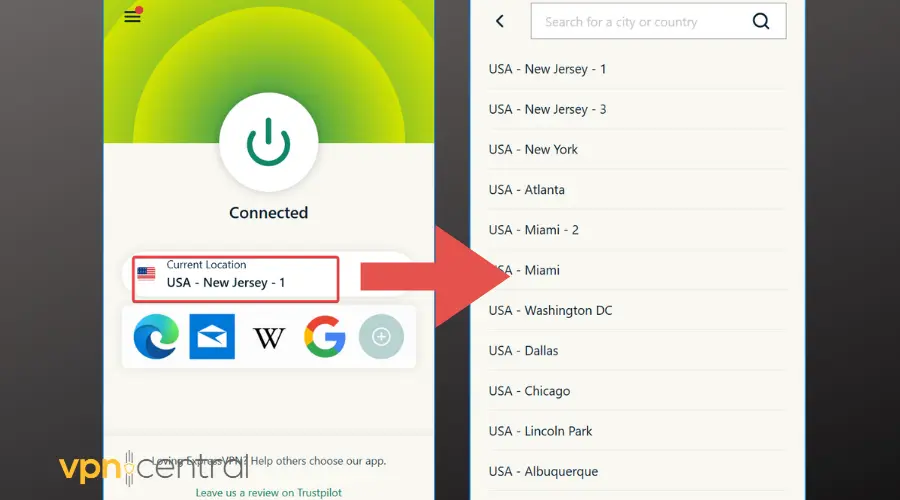
Step-by-step instructions:
- Open your VPN app.
- Select a server in the country where your Just Eat account is registered (for example, UK for a UK account).
- Connect to that server and wait for the connection to establish.
- Open the Just Eat app and check if menus and restaurants now load properly.
Why it works: Just Eat detects your IP address. Matching your server location with your delivery region helps the app display local restaurants correctly.
2. Disable Your VPN Temporarily
Step-by-step instructions:
- Open your VPN app.
- Disconnect from any active VPN server.
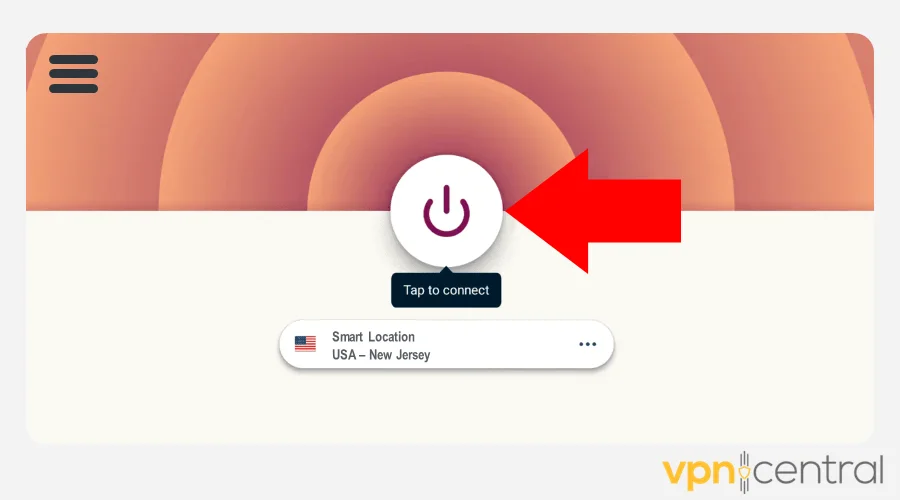
- Open the Just Eat app and attempt to browse restaurants or place an order.
- Once your order is complete, you can reconnect your VPN if needed.
Why it works: Just Eat may block known VPN IPs. Temporarily disabling your VPN avoids this conflict.
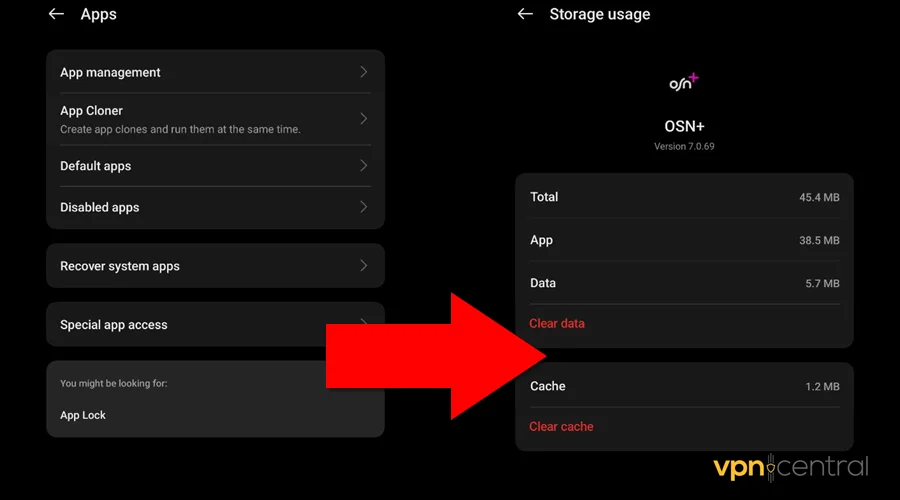
3. Clear Cache and App Data
Step-by-step instructions:
- On Android:
- Go to Settings > Apps > Just Eat.
- Tap Storage.
- Select Clear Cache, then Clear Data.
- Reopen the app and log in again.
- On iPhone:
- Delete the Just Eat app from your device.
- Reinstall it from the App Store.
- Log back in with your account.
Why it works: This removes old location or session data that may be causing errors.
4. Turn Off Location Spoofing
Step-by-step instructions:
- Open any GPS spoofing or location-faking apps on your device.
- Disable the fake location feature.
- Open the Just Eat app and allow it to access your real GPS location.
- Refresh restaurant listings to see if they now appear correctly.
Why it works: Just Eat cross-checks your GPS and IP. When they match, menus load properly.
5. Use a Reliable VPN
Step-by-step instructions:
- Download and install NordVPN on your device.
- Open NordVPN and sign in.
- Select a server in the country where your Just Eat account is registered.
- Connect to that server and wait for confirmation.
- Open Just Eat and check if the app now loads menus and processes orders without errors.
Why it works: Premium VPNs like NordVPN provide dedicated servers and cleaner IPs, reducing the chance of being blocked by Just Eat.
6. Match Your Billing Address
Step-by-step instructions:
- Open the Just Eat app.
- Go to your account settings and verify your billing address.
- Make sure your payment method (card, PayPal, etc.) matches the country of your Just Eat account.
- Retry the payment if it previously failed.
Why it works: Mismatched billing information triggers security filters that block payments.
7. Reinstall or Update the App
Step-by-step instructions:
- Check the App Store or Google Play for updates to Just Eat.
- If an update is available, install it.
- If the problem persists, uninstall the app completely.
- Reinstall the latest version and log in again.
Why it works: Fresh installations remove bugs or permissions issues that may interfere with VPN detection.
8. Avoid Public Wi-Fi When Possible
Step-by-step instructions:
- Disconnect from any public Wi-Fi network.
- Switch to a secure, private network if available.
- If you must use public Wi-Fi, connect your VPN first and verify it is stable.
- Open Just Eat and check if the app functions correctly.
Why it works: Public Wi-Fi networks may block VPN traffic or slow down connections, causing the app to fail mid-order. For more tips, see why VPNs can’t connect on public Wi-Fi for fixes and workarounds.
Why People Use VPNs with Just Eat
Most people use a VPN with Just Eat for two main reasons: privacy and access.
A VPN keeps your connection secure, especially when you are using public Wi-Fi to order food. It also helps when you are traveling and want to see menus or place orders in another country. Some even try to use a VPN to unlock region-specific discounts or restaurant listings.
The problem? Just Eat needs to know where you actually are to show nearby delivery options. If your VPN routes traffic through another country, the app gets confused. You might see empty search results, strange menus, or an error message saying the service is down. In some cases, Just Eat will even block VPN traffic entirely using automated filters. For more about how those systems work, check out this detailed breakdown of how VPNs are blocked.
What Causes the Just Eat Not to Work With VPN?
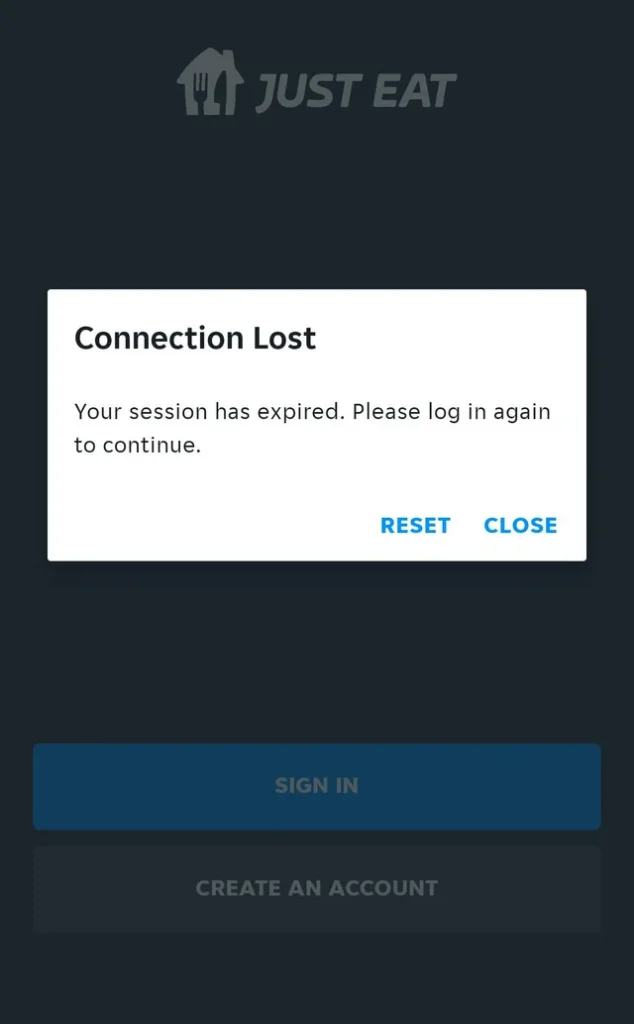
There is no single cause behind this problem. Instead, it is a mix of technical conflicts and location checks that do not line up.
- Unsupported regions: If your VPN shows you are in a country where Just Eat does not operate, the app will not show any restaurants.
- GPS and IP mismatch: The app cross-checks your GPS and your VPN IP. When they do not match, menus disappear or payments fail.
- Blocked VPN IPs: Some popular VPNs reuse the same IP addresses across thousands of users. Just Eat can detect and block these automatically.
- Slow or unstable VPNs: A weak VPN connection can make the app load slowly or stop responding altogether.
- Payment verification errors: If your billing address does not match your VPN location, payments may fail due to security filters.
All these issues lead to similar symptoms: blank screens, endless spinners, “no restaurants found,” login loops, or payment declines.
What to Avoid When Using a VPN with Just Eat
You do not need to ditch your VPN entirely, but a few habits can make things worse:
- Do not switch servers mid-order , it resets your session.
- Do not use free VPNs with shared IPs.
- Avoid using VPNs from countries where Just Eat does not operate.
- Do not fake your GPS location; it just confuses the app.
- Avoid paying through a VPN if your billing info does not match your region.
These small changes keep things running smoothly without triggering account restrictions.
Conclusion
When the Just Eat app isn’t working with your VPN, it is usually because of region mismatches, blocked IPs, or unstable servers. Start simple , connect to a local server or turn your VPN off while ordering. Clearing cache, matching billing details, and using a quality VPN can also make a big difference.
If you rely on a VPN for privacy or travel, it is all about balance: protect your connection without confusing the app. Once you have got that right, you will be back to ordering dinner in just a few taps.
FAQ
Yes, in many cases. Just Eat uses anti-fraud systems that detect and block known VPN or proxy IP addresses.
Technically, you can access regional menus, but your delivery address and payment method must still match that location.
That happens when your VPN location does not match your actual GPS location or when you are connected to a country where Just Eat does not operate.
Any reputable VPN with local servers and residential IP options will reduce your chances of being blocked. NordVPN is highly recommended for reliability.


Read our disclosure page to find out how can you help VPNCentral sustain the editorial team Read more


Improve this guide




User forum
0 messages