
VPN Not Working With LinkedIn? Here’s How to Fix It Fast


 5 min. read
  Published on
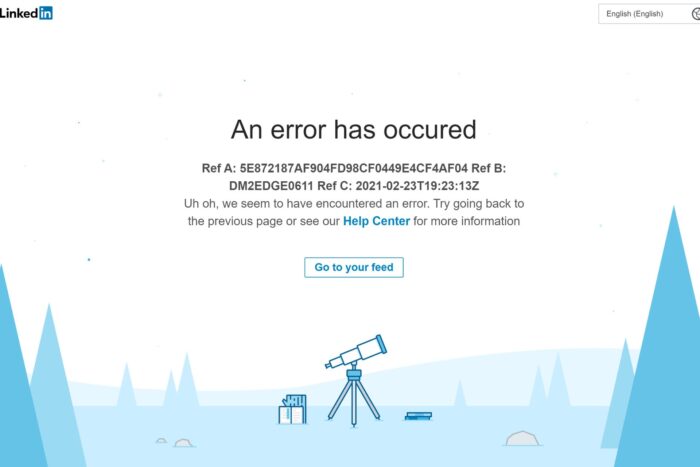
If LinkedIn isn’t loading or keeps logging you out while your VPN is on, the issue is likely that LinkedIn flagged your VPN IP address.
Try switching to another VPN server, clearing your browser cache, changing VPN protocols, or using obfuscated servers.

Access content across the globe at the highest speed rate.
🔥 Save 81% + 2 bonus months! 🔥
70% of our readers choose Private Internet Access
70% of our readers choose ExpressVPN
2
Browse the web from multiple devices with industry-standard security protocols.
🔥 Save 73%! 🔥

Faster dedicated servers for specific actions (currently at summer discounts)
🔥 Save 69%! 🔥
Below we go step by step so you can get LinkedIn working again without losing privacy.
Table of contents
Why LinkedIn Blocks VPNs
LinkedIn’s main goal is to keep its platform safe and free from fake accounts. When multiple users connect from the same IP address, something common with VPNs, their system can mistake it for spam or bot activity.

- Shared or blacklisted VPN IPs: These often get flagged as suspicious.
- Fraud and spam prevention: VPNs can hide location data, making it harder for LinkedIn to verify users.
- Data compliance rules: LinkedIn uses geolocation for regional data laws, which VPNs sometimes interfere with.
If you’re using a VPN to protect your privacy or access LinkedIn from abroad, you might get locked out or face login errors, but the problem is usually fixable.
How to Fix VPN Not Working With LinkedIn
1. Switch to a Different VPN Server
Most VPN blocks are tied to specific servers, not entire VPN providers.
- Open your VPN app.
- Disconnect from the current server.
- Connect to another server, ideally in a nearby country or major city.
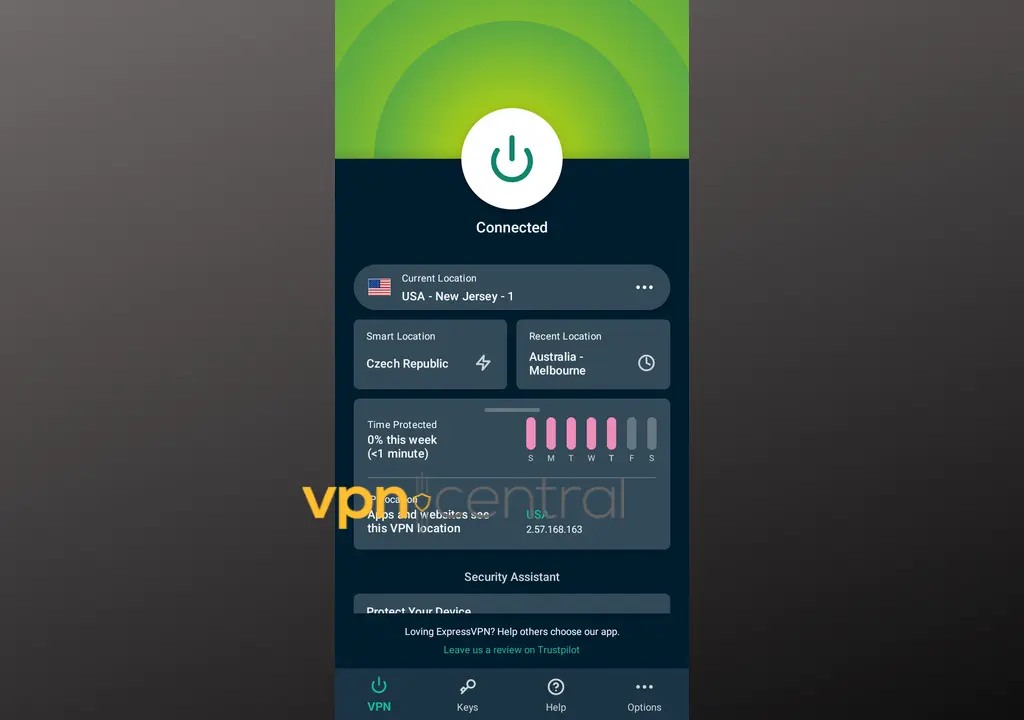
- Try accessing LinkedIn again.
This simple step solves the issue for most users.
2. Clear Your Browser’s Cache and Cookies
Old location data can confuse LinkedIn and cause login loops.
- Go to your browser settings.
- Find the option to clear browsing data.
- Select Cookies and other site data and Cached images and files.
- Choose All time as the time range, then clear data.
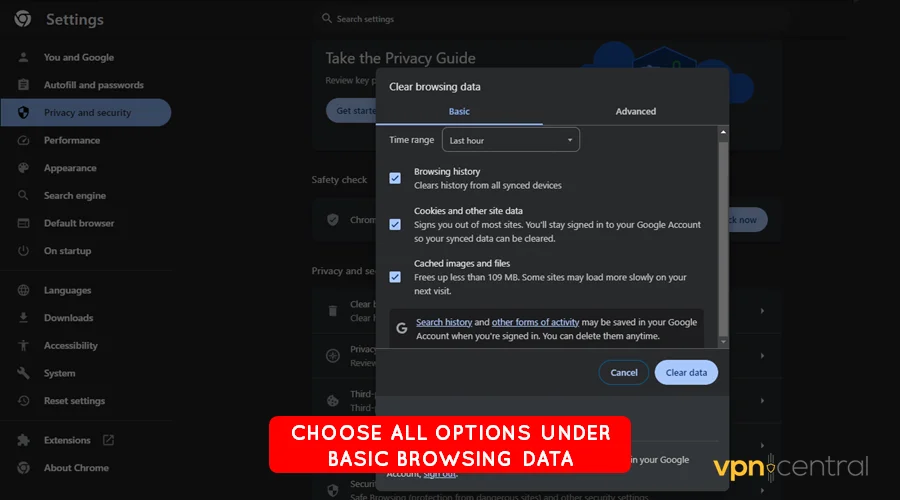
- Restart your browser and reconnect your VPN.
3. Change Your VPN Protocol
LinkedIn’s systems can sometimes detect certain VPN protocols more easily than others.
- Open your VPN settings.
- Look for connection or protocol options.
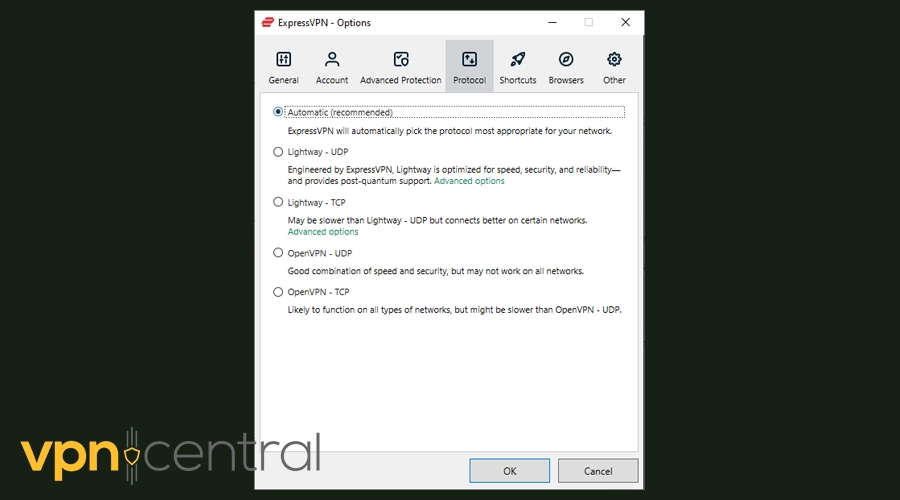
- Try WireGuard or OpenVPN UDP because they are fast and harder to block.
- Reconnect and test LinkedIn.
4. Check for IP or DNS Leaks
A leak can expose your real IP, which triggers LinkedIn security checks.
- Connect to your VPN.
- Visit an IP leak test or DNS leak test site.
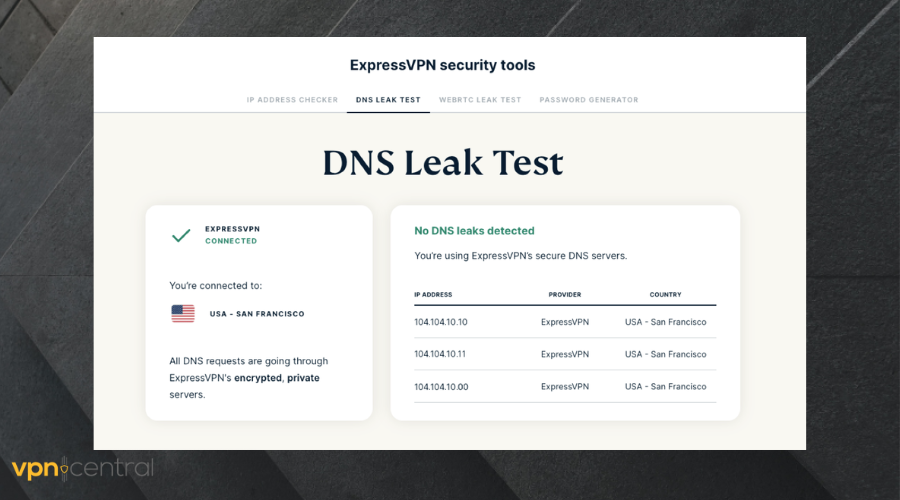
- If it shows your actual ISP or location, you have a leak.
- Enable your VPN kill switch or custom DNS to fix it.
If you are not sure how to proceed, contact your VPN provider support for exact steps.
5. Use Obfuscated or Stealth Servers
Some VPNs offer obfuscated servers that disguise VPN traffic as normal HTTPS traffic. This helps bypass detection.
- Open your VPN app.
- Look for settings labeled Obfuscation, Stealth, or Scramble.
- Enable the feature, then connect and retry LinkedIn.
6. Update Your VPN Software
Outdated apps can have bugs or old IP lists that LinkedIn already blocks.
- Open your VPN app.
- Check for updates under Settings or Help.
- Install the latest version and restart the VPN.
7. Temporarily Disable the VPN
If you just need quick access, disconnecting the VPN is a fast workaround. Remember that it means browsing without encryption, so avoid doing this on public Wi-Fi.
8. Contact Your VPN Provider
Reputable VPNs often have specific servers or configurations for sites like LinkedIn.
- Visit your VPN help or live chat section.
- Explain that LinkedIn will not load while connected to the VPN.
- Ask for recommended servers or protocol settings.
Choosing the Right VPN for LinkedIn
If this keeps happening, your VPN might not be built to handle LinkedIn restrictions. Look for a provider that offers:
- A large server network for more IP options
- Obfuscation technology for bypassing VPN blocks
- Fast, reliable connections with protocols like WireGuard
- Optional dedicated IPs for a clean, unique address
Check a curated list of options at the best VPNs for LinkedIn. If your provider keeps failing, consider switching. For general VPN troubleshooting see how to fix VPN not working.
Alternatives if the VPN Still Won’t Cooperate
- Access LinkedIn without a VPN when privacy is not critical.
- Try incognito mode or another browser to rule out extension conflicts.
- Contact LinkedIn support if your account gets flagged or locked repeatedly.
- Consider a dedicated IP VPN to avoid shared IP issues.
If you use LinkedIn Premium and want to save on the subscription safely, see how to get cheaper LinkedIn Premium.
Frequently Asked Questions
Because many VPN users share the same IPs, which LinkedIn systems can flag as spam or fraudulent activity.
Unlikely. Most users face temporary login restrictions or verification prompts rather than full bans.
Yes. It is generally safer, especially on public Wi-Fi. Just pick a VPN with strong encryption and leak protection.
Probably not. Free VPNs have smaller server networks and their IPs are more likely to be blacklisted.
Conclusion
When your VPN is not working with LinkedIn, it is not a lost cause. Quick fixes like switching servers, clearing cache, or enabling obfuscation will often solve the problem.
If the issue persists, your VPN may not be up to the task. Upgrading to a reliable service built for consistent private access will keep you connected and protected wherever you log in.


Read our disclosure page to find out how can you help VPNCentral sustain the editorial team Read more


Improve this guide




User forum
0 messages