
Linkvertise Not Working with VPN? Complete Step-by-Step Fixes


 6 min. read
  Published on

Table of contents
- Solutions to Fix Linkvertise with VPN
- 1. Connect to a Reliable VPN Server
- 2. Use a Supported Browser
- 3. Clear Cookies and Cache
- 4. Disable Ad-Blockers or Whitelist Linkvertise
- 5. Enable Cookies and JavaScript
- 6. Use a Private or Incognito Window
- 7. Prevent Anti-Bot Measures
- 8. Enable Split Tunneling (if Available)
- 9. Test a Different Network
- 10. Disconnect VPN Temporarily
- 11. Try a More Reliable VPN Provider
- Choosing the Right VPN Server
- VPN Protocols That Affect Linkvertise Access
- Privacy Considerations
- Tips for Mobile Users
- Summary
Sometimes Linkvertise links just won’t work with a VPN. This can be frustrating, but most issues are fixable.
Below are simple, step-by-step solutions with friendly explanations so you understand exactly why each step matters.

Access content across the globe at the highest speed rate.
🔥 Save 81% + 2 bonus months! 🔥
70% of our readers choose Private Internet Access
70% of our readers choose Private Internet Access
2
Browse the web from multiple devices with industry-standard security protocols.
🔥 Save 73%! 🔥

Faster dedicated servers for specific actions (currently discounted)
🔥 Save 69%! 🔥
Solutions to Fix Linkvertise with VPN
1. Connect to a Reliable VPN Server
- Open your VPN app and select a server in the US, UK, or Germany.
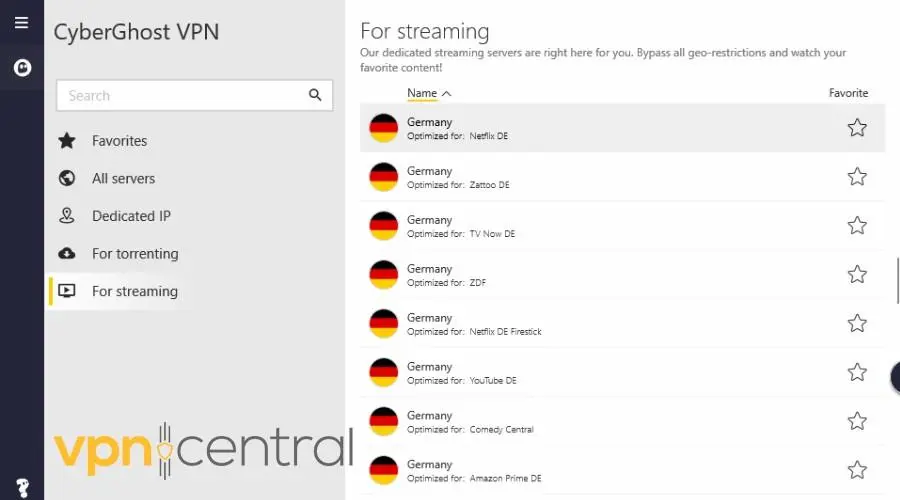
- Stick to this server for your session.
Not all VPN servers are treated equally. Some IP addresses are flagged by Linkvertise because they are commonly used by many users or come from free VPN providers. Picking a stable, well-known server reduces the chance your connection will be blocked.
If you want to understand more about what makes a server reliable, check out what a VPN server is. Choosing a good server is the foundation for everything that follows.
2. Use a Supported Browser
Open Chrome, Edge, or Firefox, and make sure it’s updated to the latest version.
Linkvertise relies on modern browser features to run ads and track interactions. If you’re using an outdated browser or one focused heavily on privacy, like Brave with default shields, it may block essential scripts. Using Chrome, Edge, or Firefox ensures the link loads as intended.
This step is especially important on mobile. Mobile browsers sometimes handle scripts differently, so sticking to a fully supported browser reduces errors.
3. Clear Cookies and Cache
- Go to your browser settings → Privacy → Clear browsing data.
- Select cookies and cached files, then confirm.
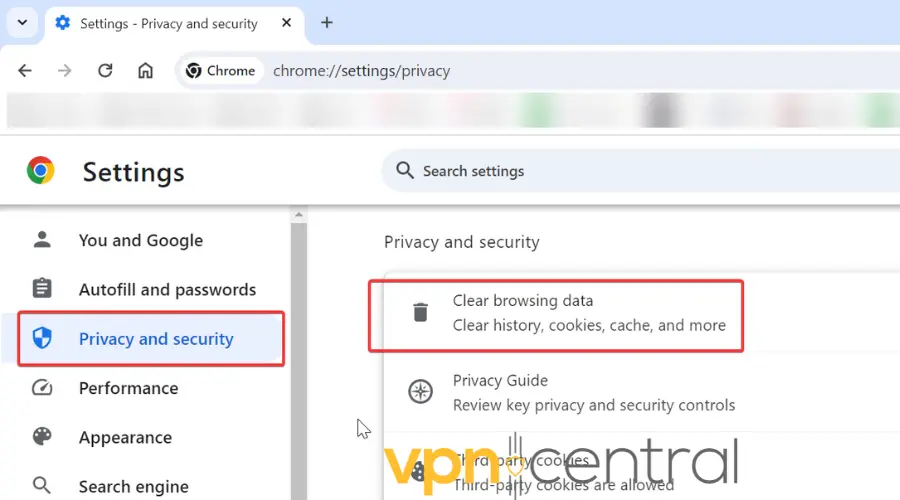
- Reload the Linkvertise link.
Cookies and cached files store information about previous sessions. When you switch VPN servers, old cookies can conflict with your new IP, causing errors or stuck pages. Clearing them gives you a fresh start.
This is a quick, simple step that fixes many access issues without touching any advanced settings.
4. Disable Ad-Blockers or Whitelist Linkvertise
- Temporarily disable ad-blocking extensions like uBlock Origin, AdBlock, or Ghostery.
- Alternatively, add linkvertise.com to your whitelist.
Linkvertise earns money through ads, and blocking them interrupts its flow.
By temporarily disabling ad-blockers, you allow the platform to track interactions and redirect you properly. It doesn’t take long, and you can turn them back on afterward.
This step is one of the most common reasons people can’t get through Linkvertise links, so don’t skip it.
5. Enable Cookies and JavaScript
- Go to your browser settings → Site Settings.
- Select Cookies and JavaScript, and make sure both are allowed for linkvertise.com.
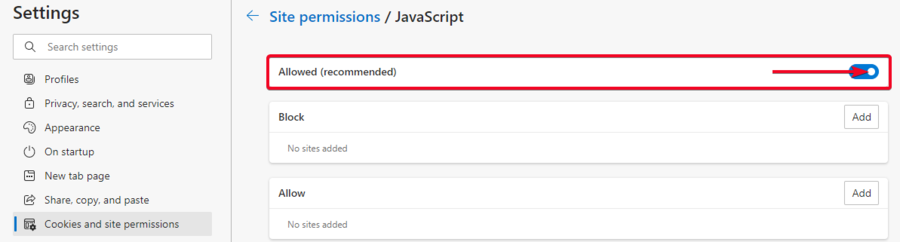
Linkvertise uses JavaScript to manage timers, ad interactions, and redirects. Without JavaScript, the page can get stuck or fail entirely. Cookies help it remember your session, especially when moving between pages or completing prompts.
Think of cookies and JavaScript as the “engine” that drives the link. Without them, it simply won’t work.
6. Use a Private or Incognito Window
- Open a private browsing session in Chrome, Edge, or Firefox.
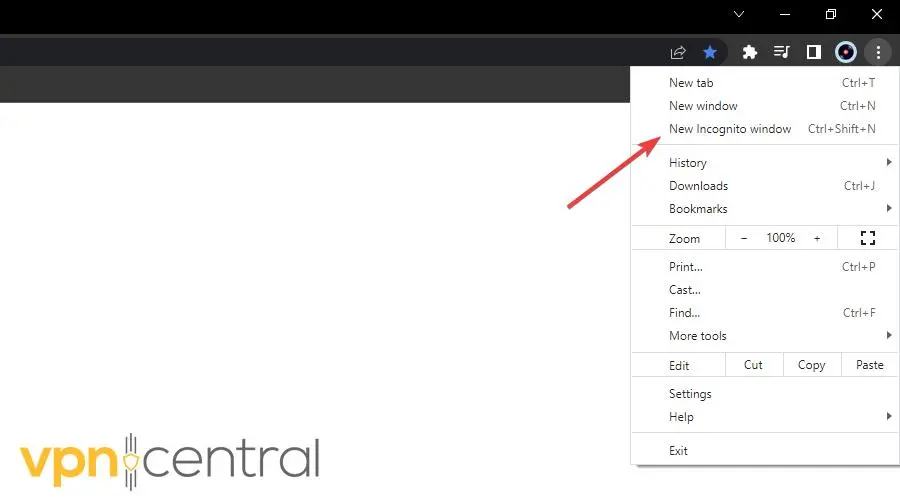
- Reconnect to your VPN and open the Linkvertise link.
Private windows are like a clean workspace. They prevent conflicts with previously stored cookies, cache, or browser extensions that may interfere with Linkvertise. It’s an easy way to troubleshoot without affecting your regular browsing data.
This is especially helpful if you’ve already tried multiple VPN servers and nothing seems to work.
7. Prevent Anti-Bot Measures
Linkvertise is designed to make sure humans interact with it. Rapid clicking or refreshing too many times can trigger anti-bot measures, causing errors or blocks. Take it slow, follow the prompts, and your progress will go through smoothly.
8. Enable Split Tunneling (if Available)
- Go to your VPN settings → Split Tunneling.
- Exclude your browser or linkvertise.com from the VPN.
- Reload the link.
Split tunneling allows you to keep most of your traffic private while letting certain apps or websites use your real IP. This way, Linkvertise sees a normal connection and doesn’t block you. It’s a great middle ground for privacy and access.
This isn’t available on all VPNs, but if yours supports it, it’s worth trying.
9. Test a Different Network
- Switch to mobile data or a personal hotspot.
- Retry the Linkvertise link.
Sometimes your ISP’s IP may be flagged, especially if it’s shared or used frequently. A fresh network gives you a clean IP and often resolves stubborn issues. For general VPN troubleshooting tips, see How to Fix VPN Not Working.
10. Disconnect VPN Temporarily
- Turn off the VPN and open the Linkvertise link.
- Complete all prompts to reach the final content.
- Reconnect your VPN afterward if needed.
While not ideal for privacy, this step is sometimes the fastest way to get through a blocked link. After completing the link, you can safely re-enable your VPN for other browsing.
11. Try a More Reliable VPN Provider
- If your current VPN repeatedly fails, switch to a stable provider like NordVPN.
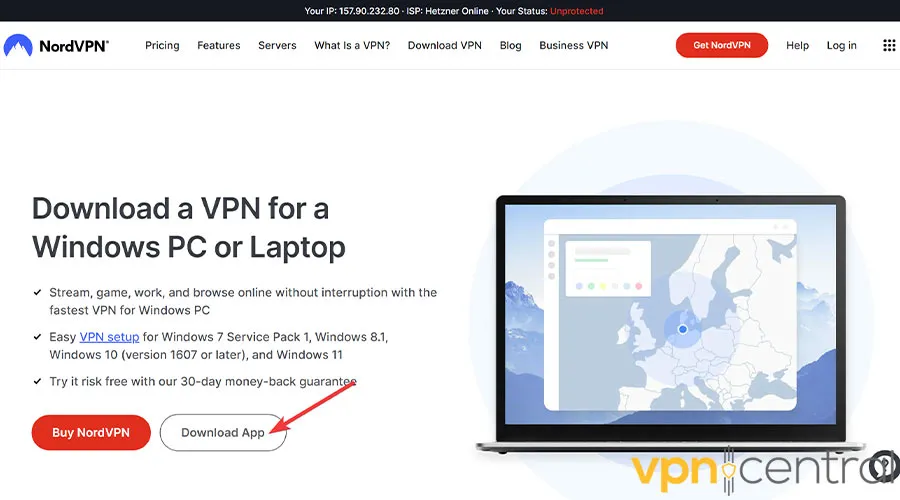
- Connect to a server in the US, UK, or Germany and retry the Linkvertise link.
NordVPN offers a large pool of fast, stable IPs, which reduces the chance of being flagged. It also has dedicated servers that rotate less frequently, making your connection more consistent. This can save a lot of time and frustration compared to free or unstable VPNs.

NordVPN
Try NordVPN for reliable Linkvertise access and smooth browsing today.Choosing the Right VPN Server
Dedicated IPs are less likely to be flagged than shared IPs. Picking high-traffic countries like Germany, US, or UK usually works best. If one location fails, switching to a nearby region can improve your chances. Learn more about changing VPN location.
VPN Protocols That Affect Linkvertise Access
Different VPN protocols handle traffic differently. OpenVPN, WireGuard, and IKEv2 have varying detectability. Choosing the right protocol can help you avoid Linkvertise blocks. For guidance, check Best VPN Protocol.
Privacy Considerations
A VPN is great for hiding your IP, but bypassing ads or automating clicks violates Linkvertise rules. You can still maintain privacy while following the correct flow. For location privacy, see Will VPN Hide My Location and Does VPN Prevent Location Tracking.
Tips for Mobile Users
Mobile browsers may not fully support all scripts or ad flows. Use Chrome or Firefox, enable cookies and JavaScript, and clear your app or browser cache before accessing the link. These steps make the process smoother and prevent small mobile-specific issues.
Summary
Most Linkvertise VPN issues come from IP detection, cookies, ad-blockers, or JavaScript restrictions.
Following these user-friendly solutions will help you reliably access content without breaking rules, preserve privacy, and improve success on desktop and mobile devices. Using a quality VPN provider like NordVPN ensures smoother and more consistent access.


Read our disclosure page to find out how can you help VPNCentral sustain the editorial team Read more


Improve this guide




User forum
0 messages