
Microsoft Teams Not Working With VPN (Easy Steps)


 5 min. read
  Published on

If Microsoft Teams is not working while connected to a VPN, the problem usually stems from settings related to your network or VPN configuration.
Below, we’ll guide you through some quick fixes that might help you get Microsoft Teams working again.

Access content across the globe at the highest speed rate.
70% of our readers choose Private Internet Access
70% of our readers choose ExpressVPN

Browse the web from multiple devices with industry-standard security protocols.

Faster dedicated servers for specific actions (currently at summer discounts)
In this article:
Why Microsoft Teams is Not Working with VPN
Microsoft Teams requires a stable and open connection to Microsoft servers. VPNs can interfere with this connection in several ways, such as by blocking certain ports, altering DNS settings, or masking your region. These issues can prevent Teams from loading or cause call/audio/video problems.
Microsoft Teams Issues: Common Symptoms and What They Mean
- Teams not loading: The VPN might be blocking the necessary connection to Teams servers.
- Audio/video issues: Your VPN could be throttling the bandwidth required for Teams’ multimedia features.
- Frequent disconnects: A VPN can cause unstable connections, especially if it’s routing through a distant server or a congested network.
- Error messages: Common error messages include “Can’t connect to Microsoft Teams,” “Teams is having trouble connecting,” or “You’re offline.”
Typical Microsoft Teams Error Messages
- “We couldn’t connect to Teams. Please try again.”
- “Teams is having trouble starting.”
- “Network error, please try again.”
- “Teams cannot connect to the internet.”
Step-by-Step Fixes to Make Microsoft Teams Work with VPN
1) Disconnect and Reconnect to the VPN
- Disconnect from your VPN.
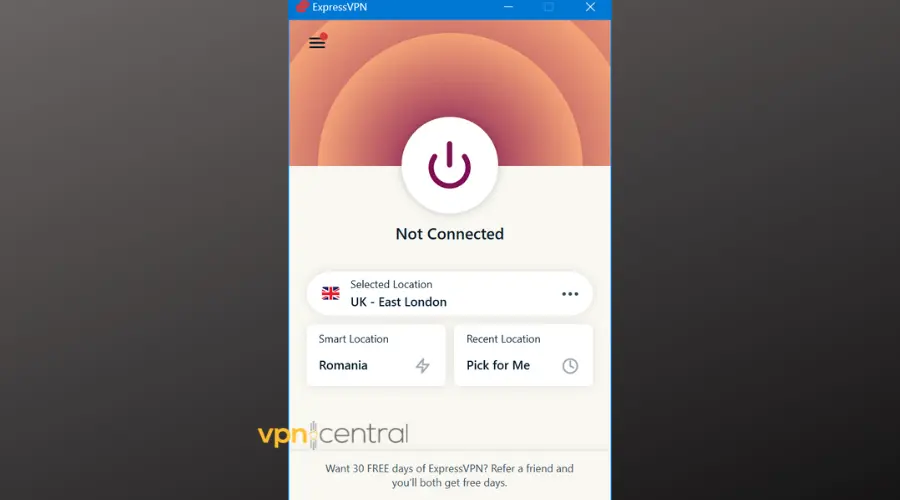
- Wait for a few seconds.
- Reconnect to the VPN.
Why this helps: Sometimes, network congestion or temporary routing issues can cause disruptions in Teams. Reconnecting may establish a fresh connection to the VPN and restore functionality.
2) Try Using a Different VPN Server
- Open your VPN software.
- Select a different server or region.
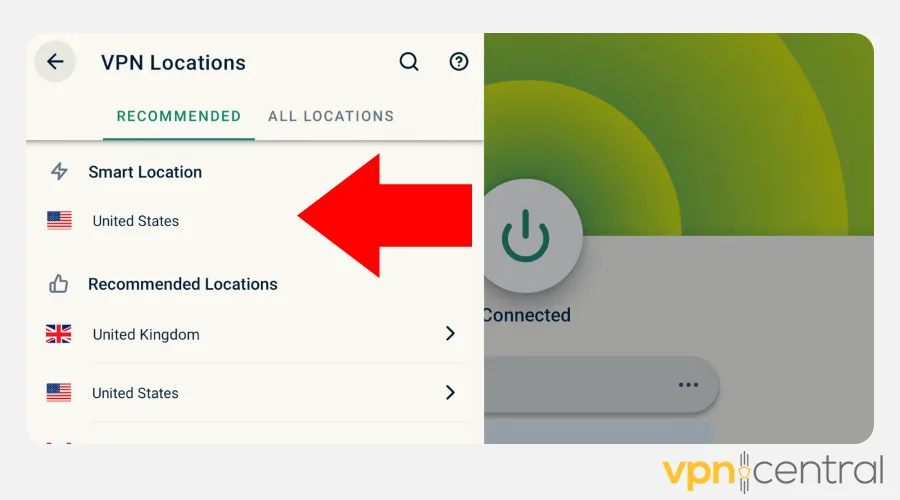
- Connect to the new server and try using Teams again.
Why this helps: Teams may be blocking certain IP ranges or regions used by your VPN provider. Switching to a different server can help bypass these restrictions and restore connectivity.
3) Disable Any Firewall or Antivirus Temporarily
- Open your firewall or antivirus settings.
- Temporarily disable the firewall or antivirus protection.
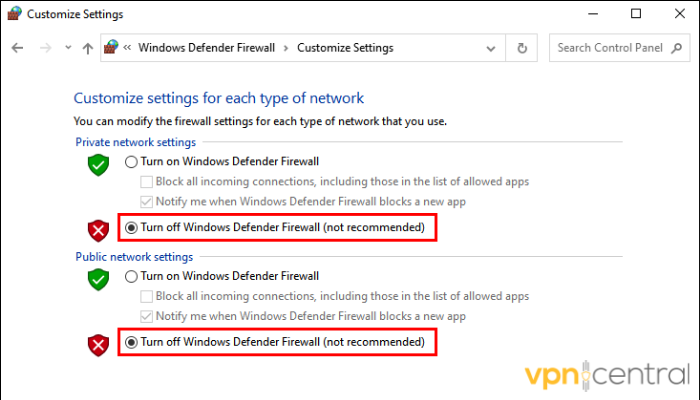
- Test Teams again.
Why this helps: Firewalls or antivirus software may block the necessary ports for Teams to communicate with its servers. Disabling them momentarily can help identify if they are causing the issue.
4) Check for Microsoft Teams Updates
- Open Microsoft Teams.
- Click on your profile icon in the top-right corner.
- Select “Check for Updates.”
Why this helps: Outdated versions of Teams can experience compatibility issues with VPNs or network configurations. Ensuring you have the latest version of Teams can solve many connectivity problems.
5) Reboot Your Router and Device
- Turn off your router and wait 30 seconds.
- Restart your device.
- Reconnect to the VPN and open Teams.
Why this helps: Sometimes, a simple reboot of both your router and device can resolve network issues that are affecting Teams’ connectivity.
6) Use Teams in a Browser
- Open your preferred web browser.
- Go to https://teams.microsoft.com.
- Log in and try using Teams through the web app.
Why this helps: The Teams desktop app might be facing issues with your VPN or network configuration. Using the web app bypasses potential client-side conflicts.
7) Disable VPN Split Tunneling
- Open your VPN settings.
- Look for the “Split Tunneling” option.
- Disable Split Tunneling and reconnect.
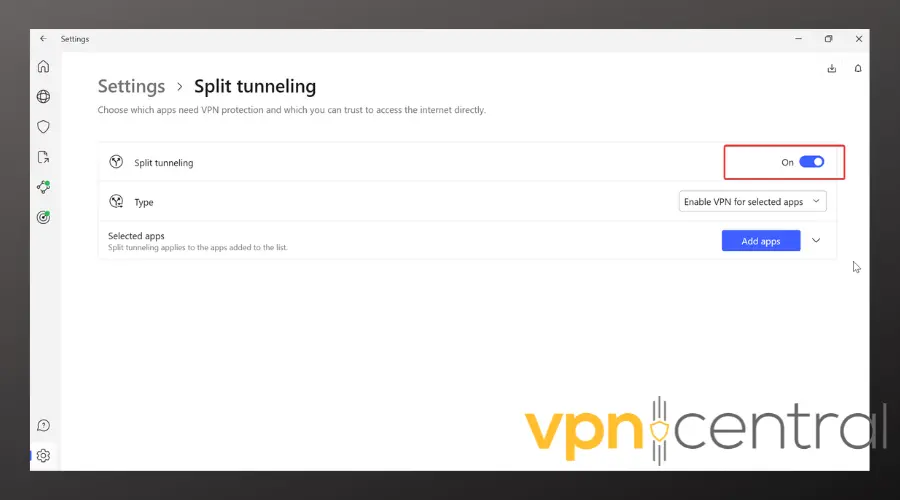
Why this helps: Split tunneling lets some traffic bypass the VPN. Disabling this ensures that all traffic, including Teams, is routed through the VPN, allowing for better stability.
8) Check Your DNS Settings
- Open your network settings.
- Set your DNS server to 8.8.8.8 (Google DNS) or 1.1.1.1 (Cloudflare DNS).
- Restart your device and try using Teams again.
Why this helps: VPNs can sometimes use custom DNS servers that may cause issues with Teams. Switching to a more reliable DNS service can help establish a more stable connection.
Best VPN Providers for Microsoft Teams Without Errors
Using the right VPN provider can make a significant difference in your Teams experience. Here are a few highly rated VPNs known for excellent speed and reliability:
- NordVPN
Offers excellent server options and high-speed connections, ensuring smooth Teams calls and meetings. - ExpressVPN
Known for fast, secure connections with servers optimized for high-bandwidth applications like Teams. - CyberGhost
Reliable and easy-to-use VPN, with specialized servers for streaming and business apps like Microsoft Teams.
How to Choose the Best VPN for Microsoft Teams
When selecting a VPN for Teams, consider these criteria:
- Speed: Choose a VPN with fast servers to ensure smooth calls and meetings.
- Reliability: Opt for a provider with stable connections to avoid constant disconnects.
- Security: Make sure the VPN uses strong encryption to protect your data.
- Server Locations: A VPN with servers in multiple locations can help you avoid regional restrictions and improve connection stability.
Conclusion: Fixing Microsoft Teams Not Working with VPN
If Microsoft Teams isn’t working while using a VPN, it’s typically due to network issues or VPN settings. Follow the fixes outlined above, such as reconnecting to the VPN, updating Teams, or adjusting your DNS settings. If all else fails, switching VPN providers or adjusting your firewall settings can help resolve the issue.


Read our disclosure page to find out how can you help VPNCentral sustain the editorial team Read more


Improve this guide



User forum
0 messages