
How to Fix Outlook Not Working With VPN (Step by Step)


 4 min. read
  Published on
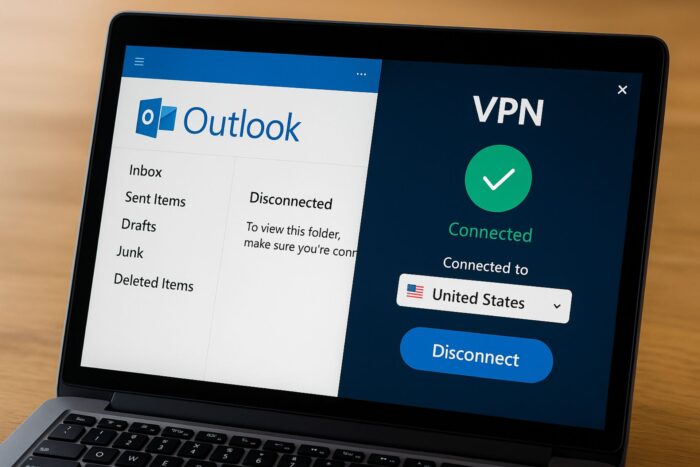
Outlook not working with VPN can stop you from sending or receiving important emails when you need them most.
This problem often shows up as sync errors, login failures, or Outlook simply refusing to connect. Since Outlook is central to many people’s daily work, getting locked out because of a VPN can quickly derail your schedule.

Access content across the globe at the highest speed rate.
70% of our readers choose Private Internet Access
70% of our readers choose ExpressVPN

Browse the web from multiple devices with industry-standard security protocols.

Faster dedicated servers for specific actions (currently at summer discounts)
The good news is there are practical fixes that can get Outlook and your VPN working together smoothly again.
Table of contents
- Why Outlook Fails Over VPN
- Step 1: Switch to Another VPN Server
- Step 2: Check Outlook’s Connection Settings
- Step 3: Update Both Outlook and Your VPN
- Step 4: Change DNS Settings
- Step 5: Temporarily Disable Antivirus or Firewall
- Step 6: Use Split Tunneling
- Step 7: Reinstall the VPN App
- Final Thoughts on Outlook and VPN Issues
- FAQs
Why Outlook Fails Over VPN
When Outlook fails over a VPN, it’s usually due to blocked ports, bad DNS settings, or Microsoft’s security filters reacting to unusual login locations. Sometimes the VPN app itself is outdated, or the connection is being restricted by firewalls and antivirus software. If you’ve seen similar problems with other mail apps, here’s a helpful guide on how to fix email not working with VPN.
Step 1: Switch to Another VPN Server
Sometimes the VPN server location you picked is blocked by Microsoft or flagged for suspicious activity.
- Open your VPN app.
- Disconnect from the current server.
- Pick another server, preferably in your own country.
- Reconnect and open Outlook again.
Step 2: Check Outlook’s Connection Settings
If Outlook can’t sync over VPN, it may be using the wrong ports.
- Open Outlook.
- Go to File > Account Settings > Server Settings.
- Confirm the incoming (IMAP/POP) and outgoing (SMTP) ports are correct.
- Save changes and test with your VPN connected.
Step 3: Update Both Outlook and Your VPN
Outdated apps can cause conflicts when connecting through secure tunnels.
- In Outlook, go to File > Office Account > Update Options.
- Install available updates.
- Update your VPN app from its official site or app store.
- Restart your PC and test Outlook again.
Step 4: Change DNS Settings
A VPN may override DNS and prevent Outlook from reaching Microsoft’s servers.
- Press Windows + R, type
ncpa.cpl, and hit Enter. - Right-click your active network > Properties.
- Select Internet Protocol Version 4 (TCP/IPv4) > Properties.
- Choose “Use the following DNS servers.”
Preferred: 8.8.8.8
Alternate: 8.8.4.4 - Save changes and reconnect the VPN.
Step 5: Temporarily Disable Antivirus or Firewall
Security software can block Outlook traffic while a VPN is active.
- Open your antivirus or firewall settings.
- Turn off the protection for a few minutes.
- Try running Outlook with the VPN enabled.
- If it works, add Outlook and your VPN app as exceptions.
Step 6: Use Split Tunneling
Split tunneling lets you decide which apps use the VPN and which don’t. This can be especially useful for Microsoft apps. In fact, many users wonder can a VPN be used with Office 365, since sometimes security checks make access harder. Split tunneling solves this by routing only what you need through the VPN.
- Open your VPN settings.
- Look for Split Tunneling or App Whitelisting.
- Add Outlook to the list of apps that bypass the VPN.
- Save and reconnect the VPN.
Step 7: Reinstall the VPN App
If nothing else works, the VPN app might be corrupted.
- Press Windows + R, type
appwiz.cpl, and hit Enter. - Uninstall your VPN app.
- Download the latest version from the official website.
- Install it, sign in, and test Outlook again.
Final Thoughts on Outlook and VPN Issues
If Outlook is not working with VPN, one of these steps should get things moving again. From switching servers to tweaking DNS or enabling split tunneling, there’s usually a quick fix that avoids bigger disruptions to your workflow.
While solving these issues, it’s also worth paying attention to your inbox security, for instance, using a VPN won’t automatically stop junk mail.
You’ll need to combine it with smarter filters and awareness of online threats. And don’t forget to stay alert by learning how to spot phishing email, since VPNs alone can’t block every scam.
FAQs
Outlook may stop working with VPN because ports are blocked, DNS is misconfigured, or Microsoft flags the VPN server’s IP address.
Yes, Outlook works fine with VPNs, but sometimes extra security checks from Microsoft can block login attempts.
Yes. With split tunneling, Outlook traffic bypasses the VPN, reducing conflicts and improving connection reliability.
In most cases, yes. Switching to a local VPN server often solves the issue if Microsoft blocked your original server.


Read our disclosure page to find out how can you help VPNCentral sustain the editorial team Read more


Improve this guide




User forum
0 messages