
How to Fix Fliff Not Working with VPN


 9 min. read
  Published on
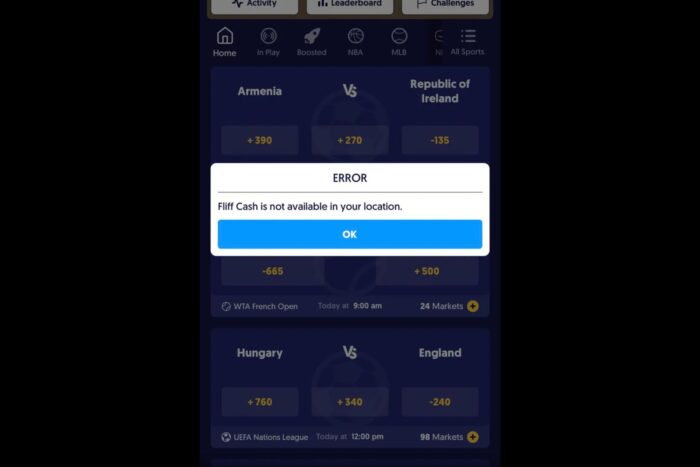
Fliff not working with VPN frustrates many users who want to protect their privacy or access the app securely. You may see errors like “VPN detected,” “location restricted,” or face app crashes.
Quick fixes include turning off your VPN, restarting your device, enabling location services, or using better VPN tools. This guide explains why Fliff blocks VPNs and how to solve common problems step-by-step.

Access content across the globe at the highest speed rate.
70% of our readers choose Private Internet Access
70% of our readers choose ExpressVPN

Browse the web from multiple devices with industry-standard security protocols.

Faster dedicated servers for specific actions (currently at summer discounts)
For a deeper understanding of how VPNs affect sports betting apps, check out this helpful guide on using a VPN to bet on sports.
Table of contents
- Why Fliff Blocks VPNs
- Step-by-Step Fixes to Get Fliff Working with VPN
- Fix 1: Turn Off Your VPN Completely Before Opening Fliff
- Fix 2: Restart Your Device with VPN On, Then Turn VPN On Again After Boot
- Fix 3: Enable Location Services and Grant Precise GPS Permissions
- Fix 4: Clear Fliff App Cache and Data
- Fix 5: Use a Better VPN Provider that Minimizes Detection
- Fix 6: Avoid VPN Use During Withdrawal or Verification
- Fix 7: Switch to Mobile Data Instead of Wi-Fi
- Fliff Availability and VPN Restrictions by State
- Features Affected When Using VPN
- How to Pick the Best VPN for Fliff
- Conclusion
Why Fliff Blocks VPNs
Fliff is a social sportsbook app that offers sweepstakes-style sports predictions. It must comply with legal and regulatory requirements in each U.S. state where it operates. Because VPNs mask your true IP address and location, Fliff blocks them to avoid legal problems and prevent fraud.
Symptoms When Fliff Blocks VPNs
- VPN Detected Error: The app explicitly shows “VPN or proxy detected. Please disable and try again.”
- Infinite Loading: The app spins forever during startup without progress.
- Location Restricted Message: “Fliff is not available in your current location,” even if you are in a supported state.
- Location Services Required: The app asks you to enable GPS, or shows errors despite GPS being enabled.
- Features Disabled: Fliff Cash games or cash redemption options do not load or appear greyed out.
- Verification Failures: You cannot complete identity or withdrawal verification steps.
- Unexpected Crashes: The app crashes or closes unexpectedly after opening.
Typical Errors and What They Mean
- HTTP Response Code 500: Server error possibly caused by VPN blocking or network interference.
- “Unable to verify your location”: Fliff detects mismatch between your IP and GPS coordinates.
- “Error verifying identity. Please contact support.” Verification fails due to VPN interfering with location or identity checks.
- “This feature is not available in your region.” You are blocked from accessing certain app features because your location seems restricted.
For more about how VPNs cause errors on gambling apps, see VPN not working with gambling apps.
Step-by-Step Fixes to Get Fliff Working with VPN
Fix 1: Turn Off Your VPN Completely Before Opening Fliff
Steps:
- Close the Fliff app fully if it is open.
- Open your VPN app and disconnect. Don’t just pause it; turn it off entirely.
- Check your phone’s system settings to make sure no VPN or proxy is active.
- Restart the Fliff app and see if it loads correctly.
Why This Helps:
Fliff uses strict location checks by comparing your IP address to your GPS data. If a VPN is active, your IP location will differ from your GPS, causing the app to block your access. Completely turning off VPN ensures the app sees your real location, preventing errors and restrictions.
Fix 2: Restart Your Device with VPN On, Then Turn VPN On Again After Boot
Steps:
- Turn on your VPN (e.g., Sky VPN).
- Power off your phone completely.
- Turn your phone back on.
- Re-enable your VPN if it is off after reboot.
- Open the Fliff app.
Why This Helps:
Sometimes, cached network settings or app processes can cause VPN detection to fail. Restarting the device with VPN enabled resets network routes and can trick the app’s VPN detection temporarily. This method worked for some users and may help bypass simple VPN blocks.
Fix 3: Enable Location Services and Grant Precise GPS Permissions
Steps:
- On iPhone:
- Go to Settings > Privacy > Location Services.
- Turn on Location Services if off.
- Scroll to Fliff app and select “While Using the App” or “Always.”
- Enable Precise Location.
- On Android:
- Go to Settings > Location.
- Turn Location On.
- Open App Permissions and find Fliff.
- Set permission to “Allow all the time.”
- Enable precise location if available.
Why This Helps:
Fliff uses GPS data to verify your actual physical location. Even if your VPN masks your IP, GPS helps confirm you are in a supported state. Without accurate location permission, the app cannot verify your state legality and will block certain features or the entire app.
Learn more about how VPNs and location services interact in this article on what is a VPN server.
Fix 4: Clear Fliff App Cache and Data
Steps:
- On Android:
- Open Settings > Apps > Fliff.
- Tap “Storage.”
- Tap “Clear Cache” and then “Clear Data.”
- On iPhone:
- You cannot clear cache directly. Delete and reinstall the app.
- Press and hold the Fliff icon, tap “Delete App.”
- Reinstall Fliff from the App Store.
Why This Helps:
Clearing cache and data removes corrupted files or stored VPN information that might trigger VPN detection falsely. A fresh app install ensures you start with clean network and location data.
For related info on VPN detection and blocking, see how are VPNs blocked.
Fix 5: Use a Better VPN Provider that Minimizes Detection
Using a reliable VPN provider with strong privacy protections, fast servers, and residential IP options can help reduce the chances of Fliff detecting your VPN and blocking access.
Here are some VPNs known for their privacy features and compatibility with apps like Fliff:
- Proton VPN
Proton VPN is a well-regarded VPN provider based in Switzerland. It offers strong encryption, no-logs policy, and servers in many countries, including residential IP options that are harder to detect. Proton VPN supports multi-hop connections and has a free tier with limited features. - ExpressVPN
ExpressVPN is one of the most popular VPNs globally, known for fast speeds and reliable connections. It uses a large network of servers worldwide and offers obfuscation features designed to bypass VPN blocks. ExpressVPN is easy to use on mobile devices and supports split tunneling. - CyberGhost
CyberGhost is user-friendly and optimized for streaming and gaming apps. It offers dedicated IP addresses, a no-logs policy, and a wide range of servers. CyberGhost also has strong encryption protocols and allows you to choose servers based on specific use cases like privacy or speed.
Steps:
- Choose and install one of the recommended VPN apps.
- Connect to a server located in your actual physical state.
- Enable the VPN and make sure features like split tunneling or proxy are disabled.
- Turn on GPS/location services on your device.
- Launch Fliff and test if it works.
Why This Helps:
Fliff blocks many data center VPN IP addresses easily. VPN providers that offer residential IPs or mobile-friendly servers are less likely to be detected. Also, aligning your VPN server location with your real GPS location minimizes IP/GPS conflicts, allowing Fliff to operate without blocking you.
For more on bypassing VPN blocks, check bypass VPN blocks.
Fix 6: Avoid VPN Use During Withdrawal or Verification
Steps:
- Before you request a withdrawal of Fliff Cash, disable your VPN completely.
- Use your real location and ensure GPS is active.
- Submit your identity verification documents with VPN off.
- Only re-enable VPN after withdrawal completes successfully.
Why This Helps:
Fliff’s verification process uses strict location and identity checks. VPNs interfere with verifying your true location or matching documents, leading to frozen withdrawals or account flags. Disabling VPN during sensitive actions reduces the risk of failed transactions.
Fix 7: Switch to Mobile Data Instead of Wi-Fi
Steps:
- Turn off Wi-Fi on your device.
- Enable cellular data connection (4G or 5G).
- Make sure location services are on.
- Open Fliff and try using it without VPN.
Why This Helps:
Wi-Fi IP addresses may be flagged as proxies or VPNs due to shared or dynamic IP ranges. Cellular networks provide more consistent and accurate location data tied to your physical device. This reduces false VPN detection and location mismatches.
Fliff Availability and VPN Restrictions by State
Fliff is legal and available in most U.S. states due to its sweepstakes model, but some states restrict or block it outright. Using VPN to bypass these geo-fencing restrictions violates Fliff’s terms and risks permanent bans.
See details on geo-fencing restrictions and legal states here: geo-fencing restriction.
Features Affected When Using VPN
- Sweepstakes and Fliff Cash games may be blocked or disabled.
- Cash redemption or withdrawal may fail or be suspended.
- Account verification and KYC can become impossible.
- Referral bonuses or promotions may not credit properly.
- Overall app performance may degrade due to network conflicts.
How to Pick the Best VPN for Fliff
- Choose a VPN with residential IPs or mobile-friendly servers.
- Avoid free VPNs or ones known for shared IPs.
- Look for VPNs with fast connection speeds to avoid app timeouts.
- Pick a VPN that allows you to select servers in your real state.
- Check user reviews for gaming or betting app compatibility.
See recommendations and comparisons in this guide to the best VPN for Betway.
Conclusion
Fliff blocks VPN use mainly to comply with legal rules and prevent fraud. If you want to avoid errors and enjoy uninterrupted play, the best approach is to disable your VPN when using Fliff. Enabling location services and using a reputable VPN provider that matches your real location can help if you need VPN protection for privacy.
Try these fixes step-by-step:
- Turn VPN off before opening Fliff.
- Restart your phone with VPN enabled and reconnect.
- Enable precise GPS location permissions.
- Clear app cache or reinstall Fliff.
- Use high-quality VPNs that minimize detection.
- Avoid VPN during withdrawals and verification.
- Use mobile data instead of Wi-Fi.
If problems persist, contact Fliff customer support for assistance or check their official FAQs.


Read our disclosure page to find out how can you help VPNCentral sustain the editorial team Read more


Improve this guide




User forum
0 messages